
VMPro Recording - Files in VRL Folder are .opus Format
Issue Description
Opus files are lightly encrypted for Avaya use and cannot be pulled into ACR/Chronicall for processing. In order for Chronicall/ACR to process the files, they must be in .wav format. This article explains how some partners have had success in making that change.
AlertThe following steps need to be taken by the partner, as they're outside of our software (Chronicall/ACR) and outside of Xima Software's realm of support. If you have any questions about these steps, please reach out to Avaya for support.
Resolution
-
First, change the archiving solution in VMPro.
-
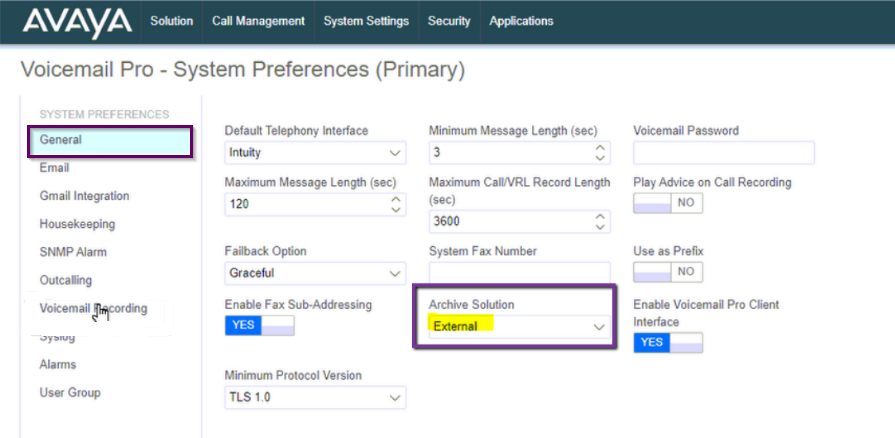
Open the VM Pro web application and navigate to Voicemail Pro - System Preferences > General settings.
-
The default Archive Solution will be Media Manager.
-
Change that setting to External.
- This will make VMPro do the following:
- Store VRL recordings in .wav format.
- Store those VRL recordings in
/opt/vmpro/VRL.
- This will make VMPro do the following:
-
Update your settings and make live.
-
-
Change the settings file on the VMPro server.
- Gain root access to the VM Pro server.
- Edit the
vmpro_settings.inifile using the CLI as root to change recordings to WAV format:- Open the file:
nano /etc/vmpro_settings.ini - Change
UseOpusForRecordings=fromYtoN(e.g.,UseOpusForRecordings=N). Default isY. - Save the file changes.
- Restart Voicemail Pro services after hours:
service vmpro restart
- Open the file:
-
Change the VMPro setting
UseOpusForVRLtoNin thevmpro_settings.inifile using the CLI as root:- Open the file:
nano /etc/vmpro_settings.ini - Change
UseOpusForVRL=fromYtoN(e.g.,UseOpusForVRL=N). Default isY. - Save the file changes.
- Restart Voicemail Pro services after hours:
service vmpro restart
- Open the file:
The files should now come to the VRL folder as .wav from VM Pro.
NotePrevious .opus files will not be processed — we'd encourage removing or archiving them out of the VRL folder.
Updated 3 months ago