
How to Run Apps Installer (Linux)
I just got Chronicall installed, but now I need to install my Recording Library and/or Multimedia service. How do I accomplish that?
Steps
-
Start off by visiting our downloads page at ximasoftware.com/downloads.
- Here we ask for your Xima Serial Key, so have that ready.
-
Navigate to the most recent build of Chronicall.
-
Right-click on the Apps option of the build that suits your needs (Debian or RPM) and select Copy link address.

- Make sure it matches up with the build you're using. In our example, we'll be using the 64-bit installer.
-
Paste that copied link into a note pad.
-
-
Navigate to a directory where you'd like to place the Chronicall installers. This can be a directory made specifically for this purpose so you can delete the files once the task is done.
-
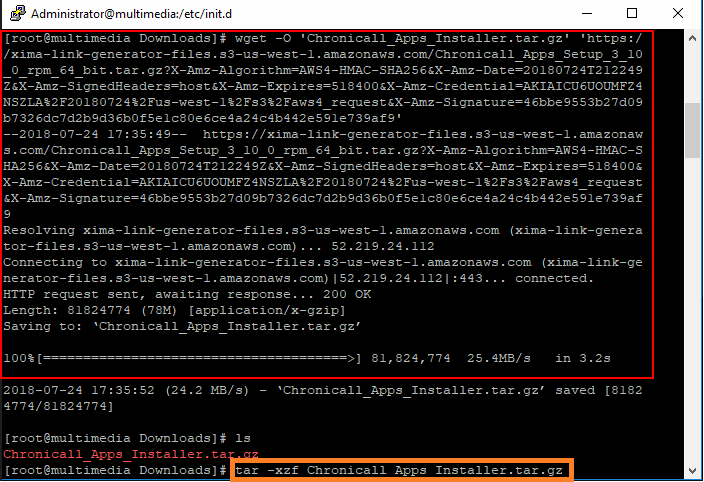
Once there, type the following command:
wget -O '(Name of your choice).tar.gz' 'https://(rest of the link that was copied from Chronicall)' -
After executing, you should see output similar to this:
-
-
Next, run the following command to extract the archive:
tar -xzf (Name we specified earlier).tar.gz -
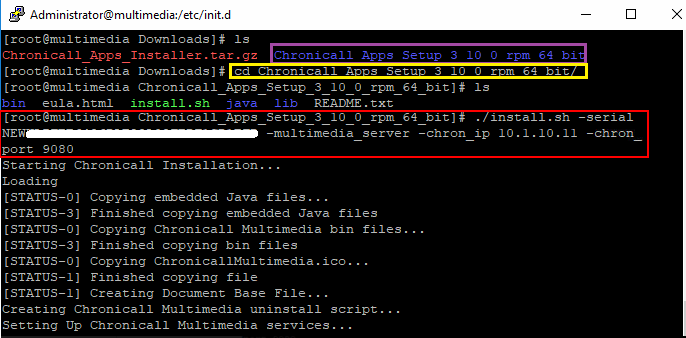
After this is done and our files are inflated, we can now navigate to the newly created directory hosting our installer.
-
Type in the following command:
-
./install.sh -Applicable_Service_Name (reference items below) -chron_ip (IP Address of Hosting Chronicall Server) -chron_port (typically 9080) -
Example of a full install of everything:
-chron_ip 10.0.0.118 -chron_port 9080 -realtime_node -realtime_ip 10.0.0.112 -realtime_reg_port 9092 -realtime_port 9082 -recording_library -rec_sys_id 1 -datagrid_node -multimedia_server
-
-
Executing this should be the last and final step.
Important Note for 4.0 and Above
When installing new apps using Chronicall 4.0 and above, you'll need to use the -chron_docbase option with the full URL instead of -chron_port and -chron_ip.
For example:

./install.sh -multimedia_server -chron_docbase http://192.168.254.22:9080Important Note for 4.2.10 and Above
When installing new apps using Chronicall 4.2.10 and above, you'll need to use -admin_user and -admin_password with the Administrator credentials you use to log into Chronicall/ACR.
For example:
./install.sh -multimedia_server -admin_user Administrator -admin_password password -chron_docbase http://192.168.254.22:9080
NoteFor recording library apps, you'll still use
-rec_sys_id 1to identify which recording library you're installing.
Updated 3 months ago