
Change The IP Address of Chronicall Desktop for Mac
Overview
On occasion, it will be necessary to update the Chronicall Host IP Address on a Mac computer running Chronicall Desktop for Mac.
Steps
Logout of Chronicall
Show Hidden Files
As of the release of macOS Sierra, the following shortcut command will show/hide all hidden system files within the Finder window:
-
Select the Finder window and type:
Shift + Command + .
Locate the .Chronicall Folder
Once hidden files are shown, navigate to the local user home directory:
-
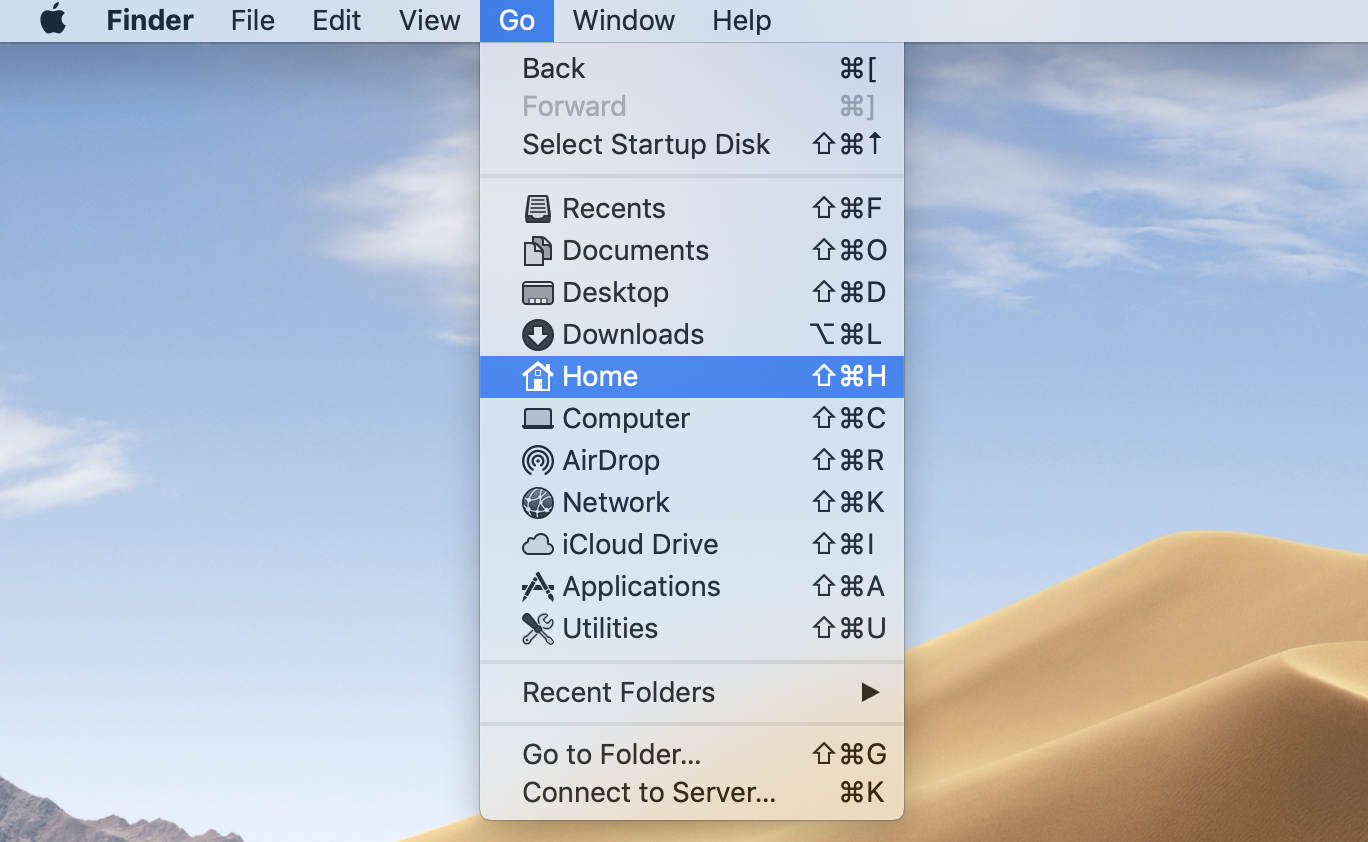
From the Finder menu, select Go, then Home (Shift + Command + H).
-
Open the .Chronicall hidden folder.

Change the IP Address
-
From within the .Chronicall hidden folder, open the documentbase.txt file with a text editor.

-
Edit the IP address via the text editor and save the change.
Login To Chronicall
-
Re-launch Chronicall to connect to the new IP address stored in documentbase.txt.
-
To toggle off the display of hidden files, reuse the same command:
Shift + Command + .
Updated 3 months ago