
Chronicall/ACR Network Database Migration
Utilizing a network database migration can greatly decrease the amount of time a server migration takes, because no backups are required. The data is directly imported to the new Chronicall/ACR install, with the old database left unchanged.
NoteThis will only work when upgrading from 3.12.6a to 4.4+, and will only migrate the database. Recording library instances will still need to be transferred manually.
NoteIn order to properly migrate, each server will need to be able to communicate with each other across the network.
Steps
-
Install your 4.4+ instance of Chronicall/ACR on the desired server.
-
On the old 3.12.6a server, save the settings.xml file and resource folder — they'll still need to be transferred manually.
-
The resource folder can usually be found here:
- Windows:
C:\Program Files (x86)\Xima Software\Chronicall\tomcat\webapps\ROOTC:\Program Files\Avaya Call Reporting\tomcat\webapps\ROOT
- Linux:
/var/lib/Xima Software/Chronicall/tomcat/webapps/ROOT/var/lib/Avaya Call Reporting/tomcat/webapps/ROOT
- Windows:
-
The settings.xml file can usually be found here:
- Windows:
C:\Program Files (x86)\Xima Software\Chronicall\C:\Program Files\Chronicall\C:\Program Files\Avaya Call Reporting
- Linux:
-
/var/lib/Xima Software/Chronicall -
/var/lib/Avaya Call Reporting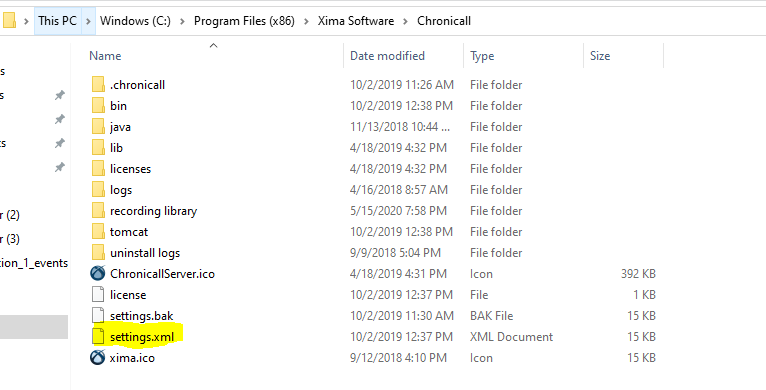
-
- Windows:
-
-
On the 4.4+ version of Chronicall/ACR, navigate to Admin (System) > Chronicall/Avaya Call Recording Backup/Restore.
-
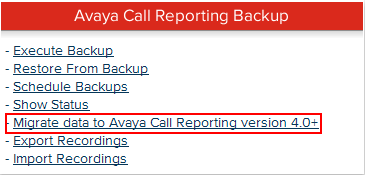
Select "Migrate Data to Chronicall/Avaya Call Reporting version 4.4+."
-
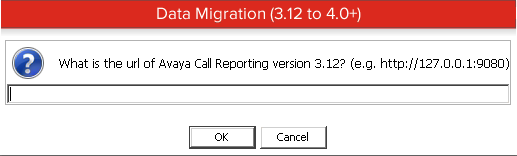
Enter the IP address and port of the old server you're migrating the data from.
-
Stop the Chronicall/ACR service on the new server and replace the settings.xml file and resource folder in their respective directories.
- This allows Chronicall/ACR to log new data while the database is still migrating.
-
Start the Chronicall/ACR service back up again.
Potential Errors
java.lang.RuntimeException: Error! You are missing your encryption key! Please find your encryption key in a backed-up settings file and restore it to your current settings.xml file-
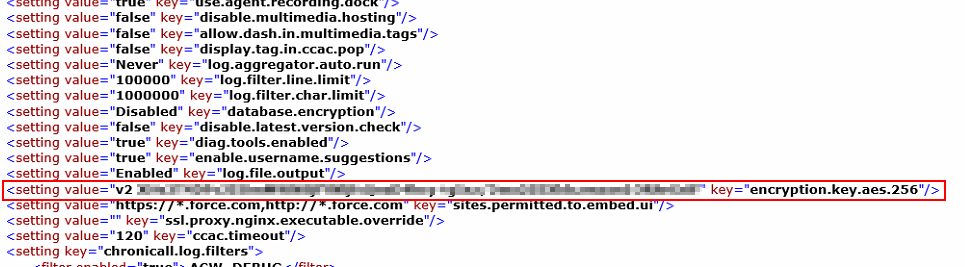
This has been seen on a 3.12 install that didn't have the line below in Chronicall's settings.xml. You can pull this line from a healthy settings.xml or a settings.bak file.
-
It should look like this. The example below has the encryption key blanked out to xx's, but your actual encryption key should be a mix of numbers and letters. Copy and paste it from a healthy settings.xml or settings.bak file.
-
Example:
<setting key="encryption.key.aes.256" value="v2 xxxxxxxxxxxxxxxxxxxxxxxxxxxxxxxxxxxxxxxxxxxxxxxxxxxxxxxxxxxxxxxx"/>
-
Updated 3 months ago