
Increasing Java Memory Limits (Chronicall/ACR)
Increasing Java Memory Limits (Chronicall/ACR 3.10 and Above)
NoteThese steps are for v3.10 and above, since these newer versions have Java 64-bit built in, so their RAM allocations can go higher (unless you are on Shoretel/Mitel, which is limited to 32-bit).
Windows
- Navigate to the tomcat/bin/app folder in the Chronicall/ACR directory.
- Default locations:
C:\Program Files (x86)\Xima Software\Chronicall\bin\appC:\Program Files\Chronicall\bin\appC:\Program Files\Avaya Call Reporting\bin\app
- Default locations:
- Right-click and run ChronicallServerw.exe as an Administrator.
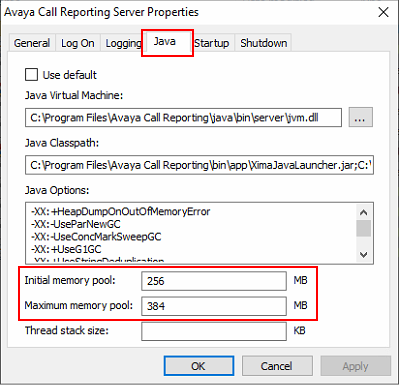
- Click the Java tab.
-
Java's "Initial memory pool" and "Maximum memory pool" are listed at the bottom.
- Always leave the Initial memory pool at its default value.
- Most new installs default to a Maximum memory pool of 384, and this can be increased — it's recommended to increase it in multiples of 1024 (1024, 2048, 3072, 4096, etc).
-
Note: 32-bit versions of Chronicall (Shoretel/Mitel and 32-bit Chronicall installs) have a "Maximum memory pool" value of 1024 MB.
-
- Adjust your "Maximum memory pool" up to the amount you need. It's recommended that you add RAM in multiples of 1024 MB — for example, if you have 2 GB free on the server, you could set your Maximum memory pool to 2048 (2 x 1024).
- Make sure your server has the available RAM resources before making this change. You don't want to tell Chronicall to use more RAM than the server has available.
- You will need to restart Chronicall/ACR before your changes take effect.
Linux
- Navigate to the tomcat/bin/app folder in the Chronicall/ACR directory.
- Default locations:
/var/lib/Xima Software/Chronicall/bin/app/var/lib/Chronicall/bin/app/var/lib/Avaya Call Reporting/bin/app
- Default locations:
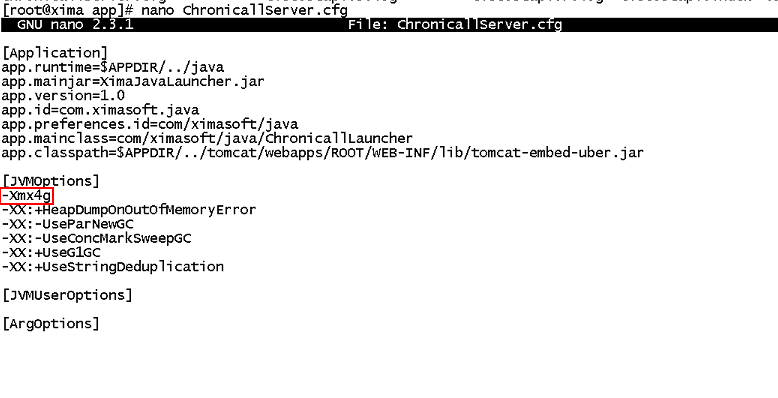
- Open the ChronicallServer.cfg file.
- Edit the -Xmx4g line to the correct amount of RAM you wish to allocate.
-
Note: Your amount of initial RAM allocation may be different.
-
Note:
-Xmx4gis equal to 4 GB of RAM,-Xmx256mis equal to 256 MB of RAM. -
Make sure your server has the available RAM resources before making this change.
-
- Save the changed file.
- Restart Chronicall/ACR services for this to go into effect.
Updated 3 months ago