
Mapping a USB Device (VRTX) for a Virtual Machine
DisclaimerXima Software always recommends a physical PC for VRTX due to its USB connectivity.
If a VRTX is put in a virtual environment, Xima may request it be placed on a physical machine. These instructions have been created for your convenience.
If you update your virtual environment, you may need to recreate the USB mapping for your VM host.
AlertXima Support will not assist in mapping USB devices, re-mapping after an update, or setting up virtual instances.
VMware
-
Plug the VRTX device into the physical host where the virtual machine resides.
-
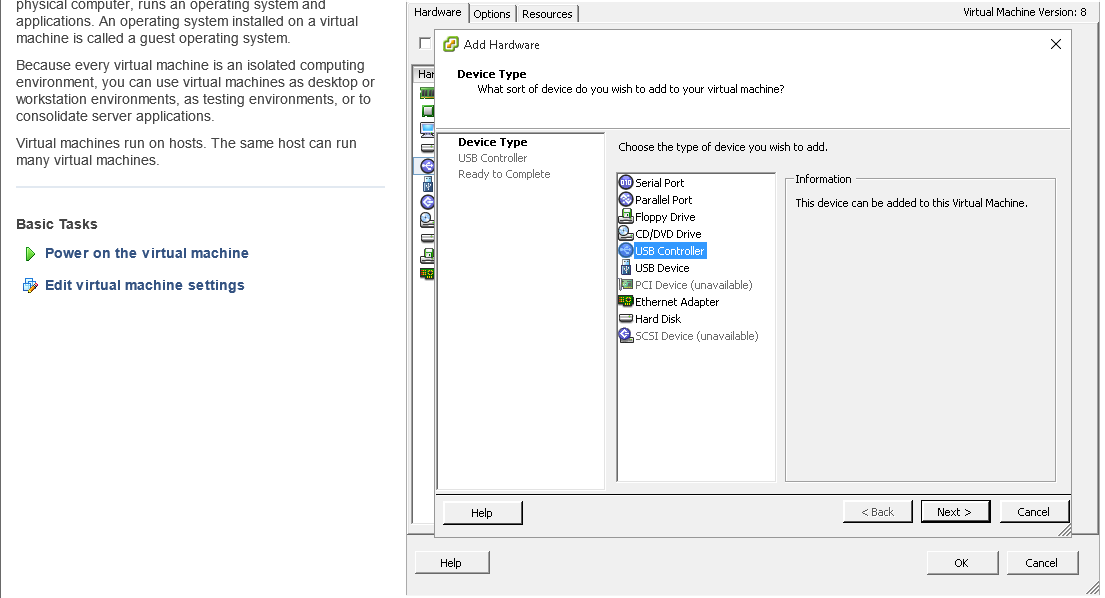
Edit the Virtual Machine Settings > Add Hardware > USB Controller, then click Next.
-
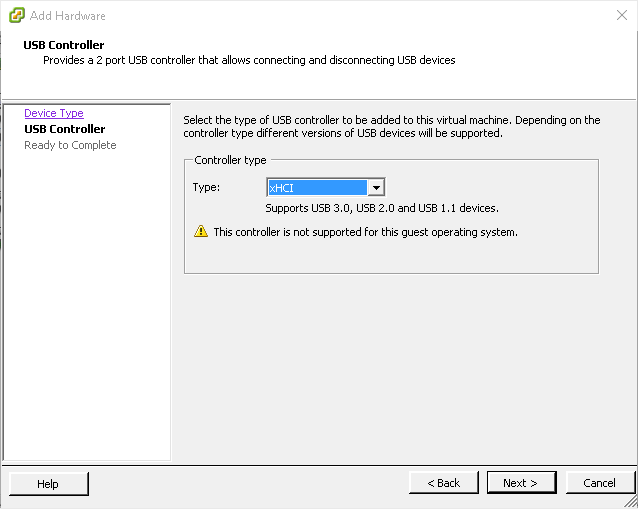
Select the Type of Controller, then click Next.
-
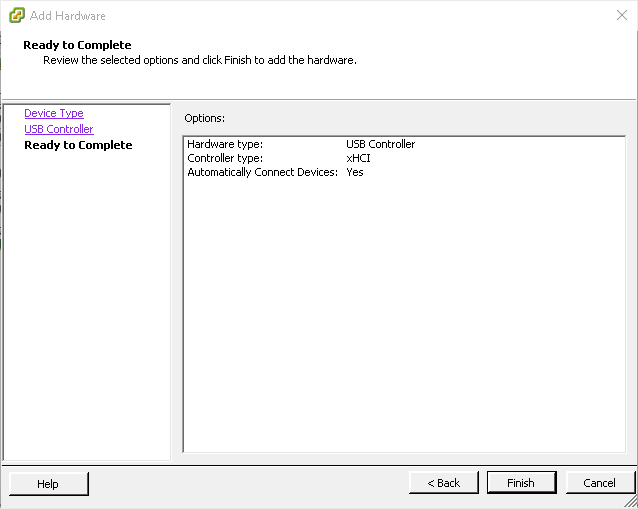
Select Finish.
-
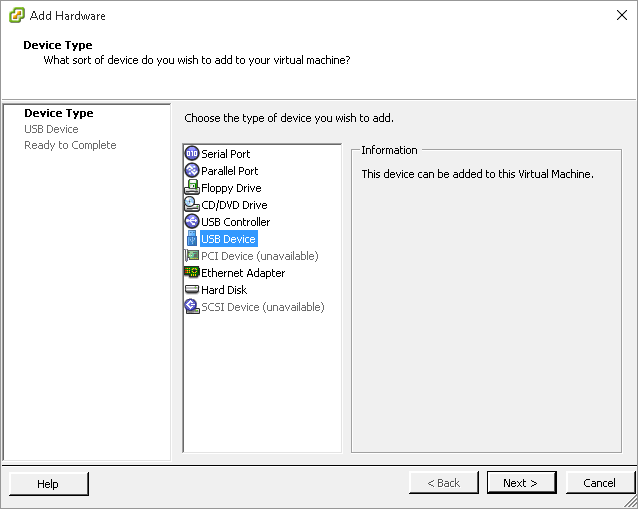
Add Hardware > USB Device, then click Next.
-
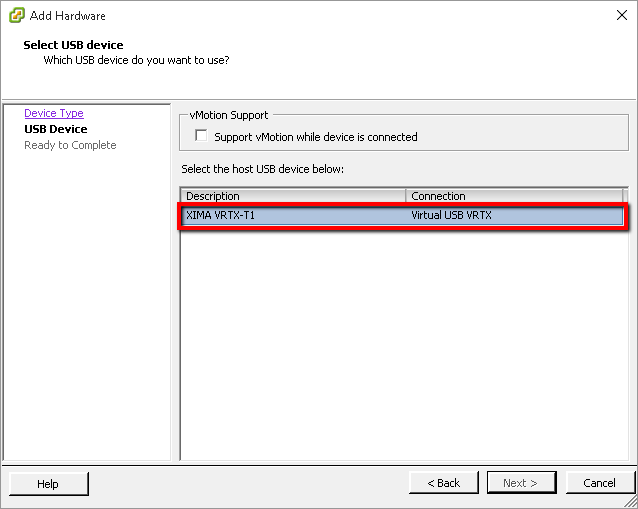
Select the VRTX device from the devices plugged into the physical host, then click Next.
-
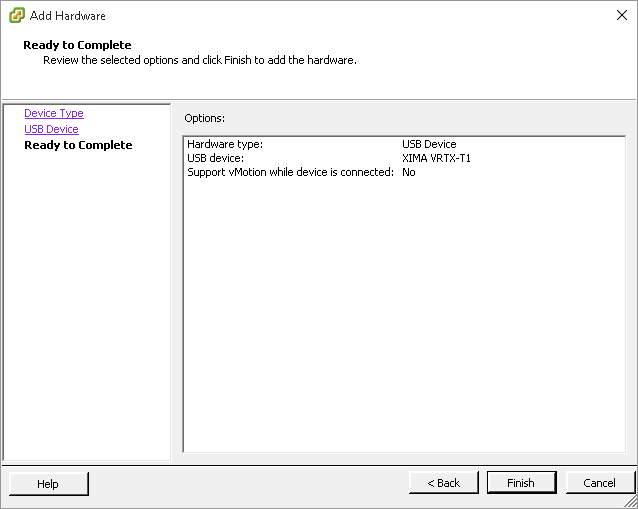
Select Finish.
Hyper-V
In order to map the USB to the appropriate virtual instance, you'll need to install a third-party USB re-director. We've seen success with this software, but do not provide support for it.
Updated 3 months ago