
Unable to Open Chronicall
Overview
Chronicall fails to launch when navigating to Chronicall inside Internet Explorer, Chronicall Desktop, or Chronicall Browserless.
Cause
The cause of this can vary, ranging from: an incorrect IP address for Chronicall Desktop, no recent Java installation (for the browser version), a change in network settings (blocked ports), Chronicall services not running on the Chronicall server, to corrupt files on the Chronicall server.
NoteIf SSL is Enabled, you need to use
HTTPS://ChronicallURL:9080/+ your Chronicall Document BaseID. Nginx requires that all connections (our own, or API) connect with that URL, not the IP address. If you're having issues accessing Chronicall, check whether SSL is enabled.
Resolution
Follow the steps below to narrow down the source of the issue.
Connecting Via Browser
If you are trying to connect to the Chronicall server via Internet Explorer, follow the steps here:
-
First, verify you are using the correct IP address and port in the browser URL bar. The default format is
http://ipaddress:9080as shown here. This method of connection requires a local installation of Java to connect to Chronicall via Internet Explorer.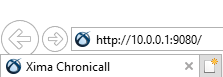
-
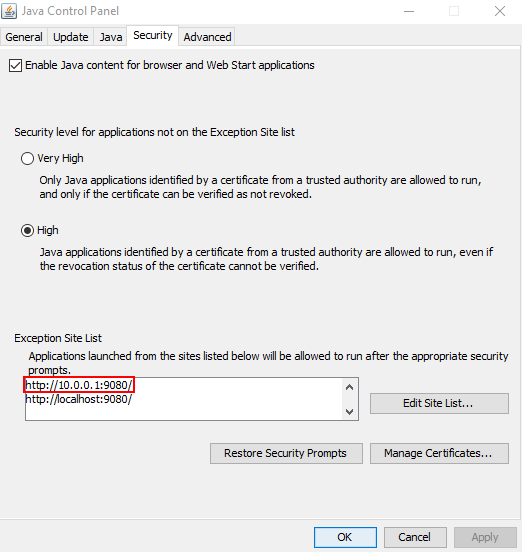
Verify your local Java security settings. You can access this by navigating inside Windows to Control Panel > Java > Security.
-
Make sure you have an exception for your Chronicall server, as shown below.
-
If it still fails to connect, try connecting next with Chronicall Desktop.
Connecting Via Desktop
-
If you don't have Chronicall Desktop installed on the local machine, download the app installer to install Chronicall Desktop.
-
Test launching Chronicall Desktop to see if it connects. Also have other users on the same subnet test access to the Chronicall server. If it works for them, try a clean wipe uninstall and install. Try the connection again.
-
Next, verify that you have the correct IP address and port for your Document Base file.
-
Open the File Explorer for the current logged-in user, for example:
C:\Users\John -
Open the
.chronicallfolder found here, then open thedocumentbase.txtfile as shown below.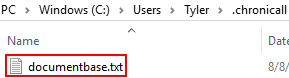
-
Verify you have the correct IP address and port inside this file. If not, update it to the correct setting and save.
Corrupt Launch File
- Sometimes one of the two key launch files can become corrupted, causing an error at launch on the server itself, whether Browser or Browserless.
Chronicall Server Access
- Test whether you can log into Chronicall via the browser or Desktop on the Chronicall server itself.
- If you can connect without issue, the problem most likely lies in your local network, since Chronicall is verified as up and running.
- Recent firewall changes, local firewalls, or different subnets between the end user and the Chronicall server can prevent Chronicall from connecting.
- You can test this by disabling your local firewall or antivirus to see if Chronicall connects. See Ports used by Chronicall for the list of ports Chronicall needs open to communicate.
- If you still can't connect, check to make sure the Chronicall services are running on the Chronicall server. See Stopping and Starting Chronicall Services to start the services if needed, then test access again.
Updated 3 months ago