
Chronicall Cannot Find The Audio Recording
Overview
When Chronicall goes to play an audio recording, if it can't locate the storage location of the recording, it will display an error.

This error is caused by either the Recording Library service not running, network connectivity issues to the Recording Library server, or Chronicall looking in the wrong recording directory for the selected recording after a server migration.
- If the play button looks like this
 in Cradle to Grave, the recording was deleted per your Retention Policy, deleted manually by someone via Cradle to Grave, or deleted manually from the Recording Library directory on the server itself.
Review the Retention Policy settings if you see this icon.
- If the recording was manually deleted or moved, the first time you play a manually deleted recording it will show the regular play button.
- Click on it, then refresh Cradle to Grave to see it properly display the red X.
Recommendation
We recommend investigating whether there was a recent server migration with your Chronicall server. The most common scenario is that Chronicall was moved, but not the Recording Library recording directory (the 0/0/0 directory inside the Recording Library folder).
When the Recording Library directory is moved, it's essential that all folders stay in the exact order they were in and on the same file path for a migration of the audio recordings to succeed.
- It's also possible that the directory was migrated, and we just need to point the Chronicall Recording Library settings to the new recording directory (recording pool).
If you find where the missing recordings are located, follow the steps below to integrate them with your current setup.
- It's also possible, but very rare, that after a server migration, if you no longer have a Recording Library license you won't be able to play historical recordings.
- For example, if you were on a Recording Library trial and no longer have an active license.
Steps
-
Verify the Recording Library directory is on the new Recording Library server. By default, it's located at one of the paths below.
-
Windows:
C:\Program Files (x86)\Xima Software\Chronicall\recording libraryC:\Program Files\Chronicall\recording library
-
Linux:
-
/var/lib/Xima Software/Chronicall/recording library -
/var/lib/Chronicall/recording library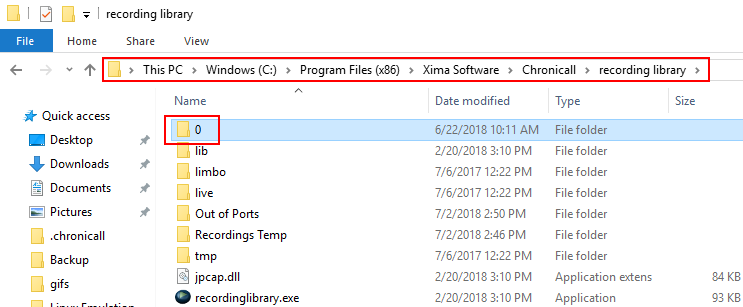
-
-
-
Stop the Chronicall Recording Library service.

-
Place the 0/0/0 recording directory into the same folder it previously existed in on the new server.
- Note: Only do this as long as that folder isn't already populated with a 0 folder.
-
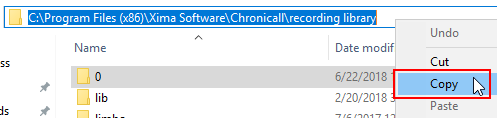
Copy the exact file path the recordings are now stored in.
-
Start the Recording Library service again.

-
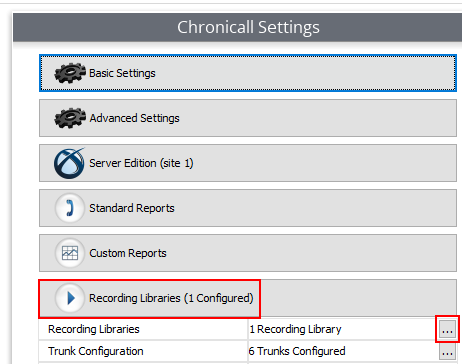
Navigate to Admin (System) > System Settings > Recording Libraries > Recording Libraries...
-
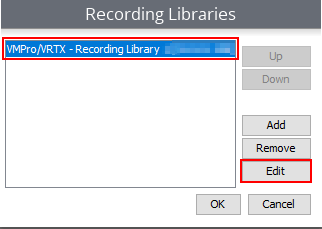
Select the Recording Library in question, then select Edit.
-
Navigate to Configure Drive Pooling...
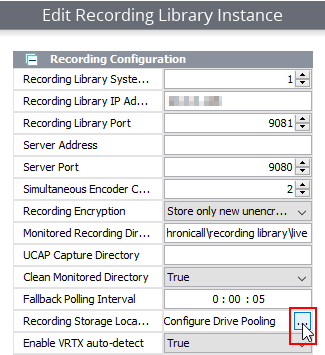
-
Select New Storage Pool.
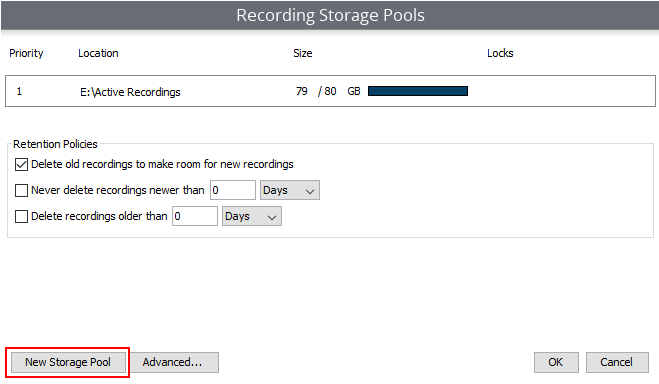
-
Paste the directory you copied earlier into the Location (required) field as shown below, then validate the path.
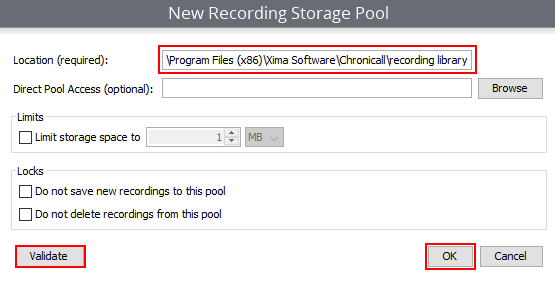
-
If validation is successful, select OK three times, then Save on the main settings screen to save the new Storage Pool path.
-
Recordings should begin to populate the same directory.
Updated 3 months ago