
How To Allow Access to CCAgent from a Public IP
I'd like to be able to access CCAgent from a public-facing IP address. Is it possible to do that, and how would I go about setting it up?
Answer
It's possible to use CCAgent from a public IP once properly configured.
Steps
-
Talk to your ISP about getting 2 public IPs for use with Chronicall/ACR and the Multimedia servers.
-
Navigate to Admin (System) > System Settings > Basic Settings.
-
Place the Chronicall/ACR server's new public IP address in the "Externally Accessible Address" field.
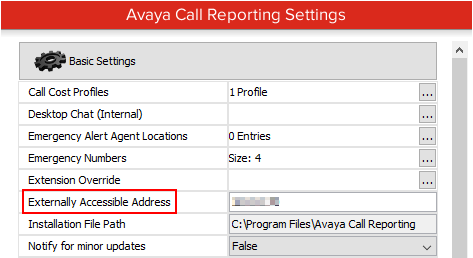
-
Navigate to Admin (System) > System Settings > Multimedia Voice Seat.
-
Place the Multimedia/Contact Center's new public IP address in the "Multimedia Server Public IP (optional)" field.
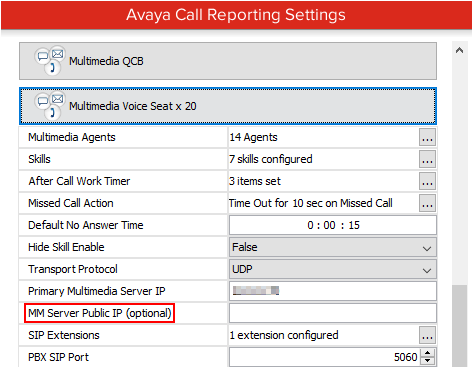
-
Navigate to Admin (System) > System Settings > Hidden Advanced Settings > Feature Toggles.
-
Turn on the "PROVIDE_PUBLIC_AND_LOCAL_IP_FOR_DESKTOP_CONNECTION" feature toggle.
-
Hit "OK" and then "Save."
- This will allow CCAgent and Dashboards to try connecting to the local Multimedia address first, then fall back to the public one.
-
Multiple ports will need to be opened on both the Chronicall/ACR server and Multimedia/Contact Center for this to work:
- Chronicall/ACR:
- Port 9080
- Port 80
- Port 443
- Multimedia/Contact Center:
-
Port 9095
-
Port 9099
-
- Chronicall/ACR:
Updated 3 months ago