
How to Access Different Instances of Chronicall from One Chronicall Desktop
I recently updated to a newer version of Chronicall (>4.0) and was able to connect to multiple Chronicalls using only one Chronicall Desktop connection. However, I saved one of those connections, and now Chronicall Desktop doesn't ask me which one I'd like to connect to anymore.
How do I go back to connecting to multiple instances of Chronicall via the selection prompt?
Answer
You'll need to delete the default.txt file from your current Users folder. This will restore multi-Chronicall functionality.
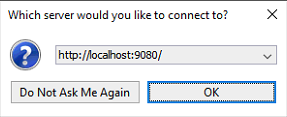
NoteThis may have happened by selecting "Do Not Ask Me Again" after a "New Connection" had been created.
Steps
-
Connect to the computer/server that is no longer able to multi-connect.
-
Navigate to the
Users\{username}directory and find the.chronicallfolder.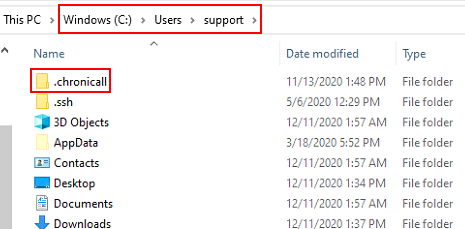
-
Under the
.chronicall\server-connectionsfolder, delete thedefault.txtfile.-
The typical file path is:
C:\Users\{user}\.chronicall\server-connections\default.txt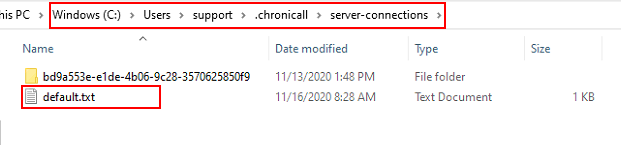
-
-
Once that file is removed, relaunch Chronicall Desktop — it should now prompt you to select the Chronicall you wish to connect to.
Updated 3 months ago