
Configuring DevLink3
New Connection Method
With IP Office Release 10, Chronicall and Avaya Call Reporting now use a new, secure way to connect to Avaya IP Office called DevLink3. This is the only reliable way to log data from IP Office, and is a requirement for logging with Avaya IPO 10.0 and above.
This means both Chronicall and ACR use a secure connection to communicate with Avaya IP Office via TCP (connection-oriented), rather than relying on UDP (connection-less) methods the way Monitor did in the past. Chronicall still collects all the detailed information from Avaya IP Office you've grown accustomed to, but with more reliability and certainty.
Licensing Requirements by Avaya for Third-Party Applications to Use DevLink3
For all IP Office connections to a third-party application like Chronicall using DevLink3, Avaya requires a CTI Link Pro License.
For Avaya Call Reporting, you do not need a CTI Link Pro license, as it's considered a first-party application by Avaya IPO.
-
Every node of IPO R10 and above must have a CTI Link Pro license to connect to Chronicall.
-
Most sites using DevLink3 will use the regular DevLink3 connection. When you need to connect to the IP Office via the internet instead of a local network port, use the DevLink Websocket option instead.
Setup Within IP Office
NoteThe DevLink3 protocol is available over TCP or TLS:
- For TCP, the port on IP Office is 50797.
- For TLS, the port is 50796.
- Log into IP Office Manager.
- Navigate to File > Advanced Settings > Security Settings.
- Default username/password is
security/securitypwd.
- Default username/password is
Turn On the DevLink3 Connection
-
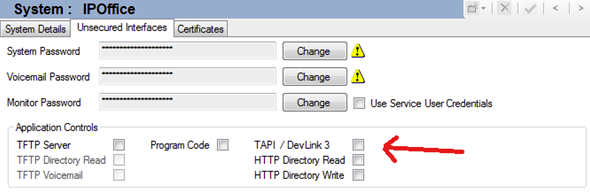
Select the System > Unsecured Interface tab.
-
Check the box next to "TAPI / DevLink 3" on the "Unsecured interfaces" tab within System Security.
- This must be checked for Chronicall/ACR connectivity.
- Availability of the TCP service is governed by the IP Office security settings.
Add DevLink3 to a Rights Group
A combination of username and password is used to authenticate the application. This is configurable on the IP Office by adding a new Rights Group and Service User via the Security Settings on the IP Office.
-
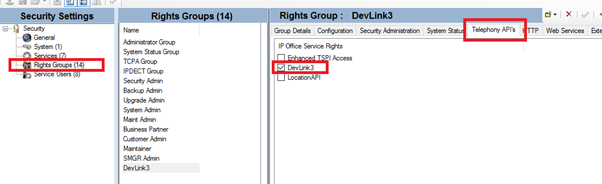
While still under the Security Settings menu, click the Rights Groups option.
-
Configure a new Rights Group and enable the checkbox "DevLink3" in the Telephony API's tab.
Add the DevLink3 Rights Group Membership to a New Service User
-
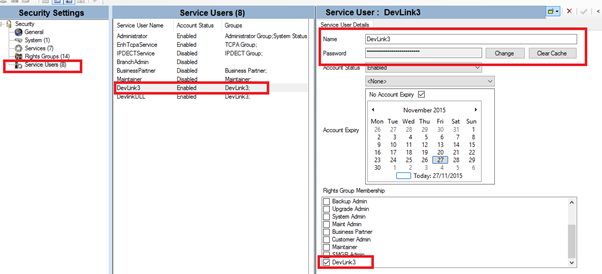
Configure a new Service User with a Name and Password, and assign it to the DevLink3 "Rights Group Membership."
 Note
NoteMake sure to write down the Username and Password for your Service User — you'll need those to complete the setup within Chronicall/ACR.
Setup Within Chronicall/ACR
-
Navigate to Admin (System) > System Settings > Server Edition.
-
Click the ellipsis next to "IP Office Connections."
-
Either add a new site or edit a previously created IPO connection.
-
When configuring a site, change the API from "System Monitor (Legacy)" to "DevLink3 (recommended)."
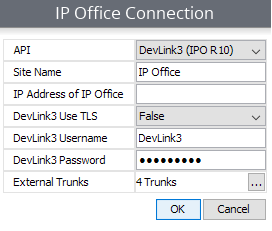
- Site Name: Give the IP Office connection a meaningful name.
- IP Address of IP Office: Enter the IP address of the IP Office.
- DevLink3 Use TLS: Set to True if using TLS. This requires a certificate of at least medium security loaded into IP Office.
- DevLink3 Username: Enter the Service User with DevLink3 rights, created in the steps above.
- DevLink3 Password: Enter the password of the Service User.
- External Trunks: See Trunk Configuration for more details.
Updated 3 months ago