
Avaya Communicator / IX Workplace FAQ
Can I report on agents using the Avaya Communicator / IX Workplace softphone?
Yes, Chronicall can collect call data such as Ringing, Talking, Hold, etc. from agents using softphones.
Can I get Realtime information on agents using the Avaya Communicator / IX Workplace softphone?
As of version 3.8.6 and newer, yes — but with a few quirks.
-
When Chronicall initializes, it sends a request to the IP Office to discover each agent's current state. This request doesn't receive sufficient details from softphone users and will show them as logged out. However, once the agent's state changes, Chronicall will see that event and update Realtime accordingly. Therefore, if you need to restart your Chronicall services, any Avaya Communicator/IX Workplace users may need to log out of their softphone and log back in to appear correctly in Realtime.
-
For Avaya Communicator users, a shortcode needs to be set up within the IP Office to toggle DND usage. Once set up, an Avaya Communicator user will need to use that shortcode for their DND usage to show up in Realtime. If you have questions about setting up a shortcode, please contact your Avaya Partner.
-
For IX Workplace users, the agent can select Do Not Disturb in the IX presence tool and it will be displayed in Realtime (as of IP Office version 11.0.4.1 / 11.0 FP4 SP1).
-
If any user is using Avaya Communicator/IX Workplace and a physical phone, the Avaya Communicator/IX Workplace will override the physical phone. Users should plan on using one or the other if they want their details to appear accurately in Realtime.
Should I set up my agents in a specific way?
The way the IP Office and Chronicall are set up can make a difference in the details you receive.
IP Office
- If a user in the IP Office also has its own H.323 extension: Realtime will display which groups the agent is logged into once they log into the extension through Communicator/IX Workplace or a physical phone (you may need to check "Enable Communicator" on the User Profile).
- If a user does not have an H.323 extension: Realtime will not display which groups the agent is logged into. Agents configured this way will need to use a Hunt Group Enable and Hunt Group Disable shortcode to toggle their current group login status (even if they're already logged into the groups). This sends an event that Chronicall will see and use to update Realtime.
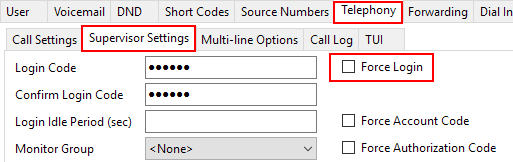
- It's also recommended that you enable Force Login within IP Office for each user.
-
Select the user within the IP Office.
-
Go to Telephony > Supervisor Settings.
-
Select Force Login.
-
Repeat for each Communicator/IX Workplace user.
-
Updated 3 months ago