
Best Practices After Server Reboots
Best Practices After Server Reboot(s)
The services for Chronicall are designed to start up automatically after a server is rebooted. However, here are some steps you can take to ensure continued call logging, recording, and skills-based routing.
Checking System Status of Chronicall
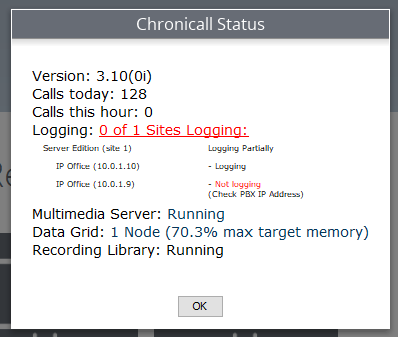
When logged into Chronicall's client and on the homepage, you will see a status icon (bell) in the top right corner.
If the icon includes a green checkmark, all services are running as expected.
However, if the status icon has an exclamation point, there is an issue with one of the services. Simply click on the status icon to see a breakdown:
Restarting Services (Windows)
If a service is not running or not connected, the first recommended step is to restart that service on the server which the service resides.
Open Services on the server. This can be found by searching for "Services" in the Windows search bar, or opening Run and entering services.msc.
If on the correct server, you will find Chronicall services below:
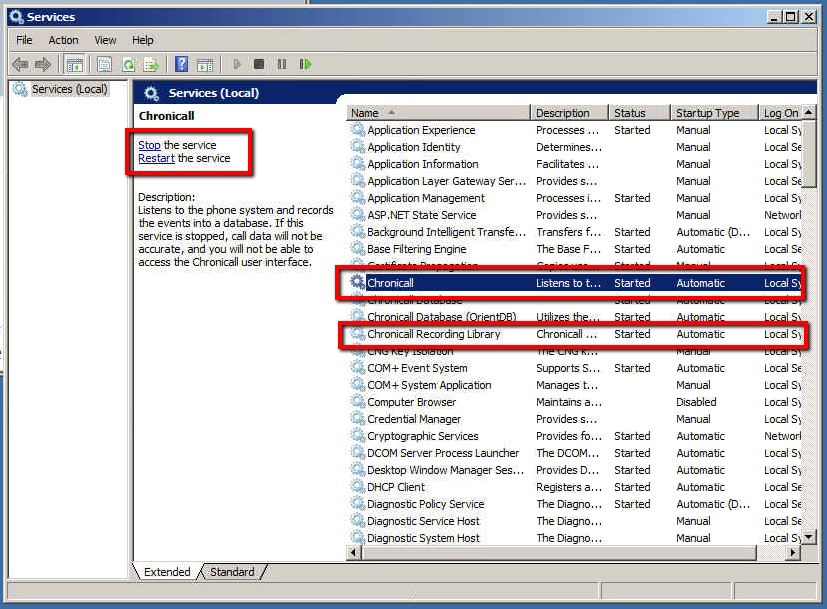
Simply select restart, then relaunch Chronicall and check the status.
Services
- Chronicall: This is the base service of all Chronicall. It is needed for call logging and Realtime monitoring, and is required for all services — including recording and skills-based routing — to function properly.
- Chronicall Recording Library: Processes recordings and inserts them into the database. Note: this service does not always reside on the same server as the Chronicall service. It can be found on the server where a VRTX box is connected, or the server where VMPro is populating recordings.
- Chronicall Multimedia: This service will always be on a separate server from the Chronicall services. This service handles call routing and queue callbacks for skill groups as well as web chat.
Best Practice for Chronicall Restarts
It is not required, but recommended, that you follow the sequence below when restarting all services:
Stop Chronicall Multimedia service → Restart Chronicall service → restart Chronicall Recording Library service → then restart Chronicall Multimedia service.
Updated 3 months ago