
Troubleshooting Missing Calls in Cradle to Grave/Call Detail View
Overview
This article covers how to troubleshoot a call that isn't showing in the call logs inside Cradle to Grave and/or Call Detail View for CDR data.
Cause
Various issues can cause a call to not be logged properly. If Chronicall is displaying an error logging, there will not be any calls captured for that timeframe. Chronicall requires uninterrupted communications between all PBX (phone) servers handling the calls. Also, if there are any missed packets on the network or other network issues present, that will also lead to a gap of missing data.
Resolution
Verify Chronicall Version
- First verify Chronicall is up to date, and then follow the steps below to troubleshoot. If you need to update (steps here), be sure to perform a backup first.
Logging Error
-
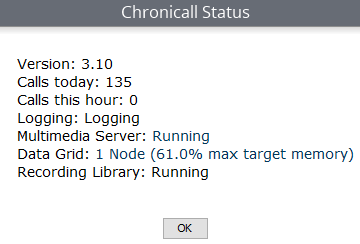
Ensure Chronicall is connected and logging without error, as shown below. In some rare instances, it's possible the Chronicall services are running fine, and there are still no call logs coming through.
-
If an error is present, use this troubleshooting flow to diagnose the logging issue.
Verify PBX Configuration
-
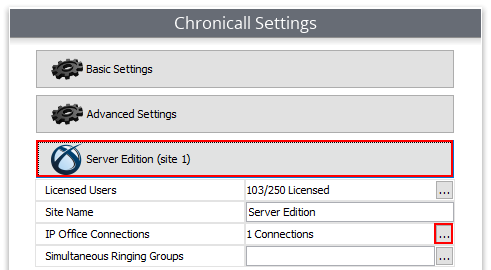
To see what PBX systems we're logging with, navigate to Admin (System) > System Settings > Server Edition.
- This will have a slightly different name for other phone systems but will be in the same spot as shown in the screen below.
-
Select the (...) next to the server settings.
-
Select the (...) next to each of your PBX configurations. Below, we're only communicating with one Avaya IP Office server.

-
Review the server settings inside to verify all IP addresses and passwords line up with your PBX. You can review the related setup guides here.
Check for Missed Packets
- Missed packet or TFTP errors in the Tomcat logs indicate that there's an issue on the local network, and you'll want to have your network administrator diagnose the missed packets if the fixes below don't work.
- Here are the file paths for the Tomcat logs:
C:\Program Files (x86)\Xima Software\Chronicall\tomcat\logsC:\Program Files\Chronicall\tomcat\logs/var/lib/Xima Software/Chronicall/tomcat/logs
- The Tomcat logs mentioned above should indicate if there are any packets falling off on the network or TFTP errors. Follow the steps below for your PBX platform to address any related issues.
Avaya IPO Steps
IP Office 9.0 Fix
-
Navigate to File > Advanced Settings > Security Settings.
-
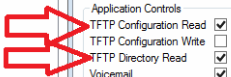
On the unsecured interface tab, verify TFTP Configuration Read and TFTP Directory Read are enabled so we get user and trunk data. If not, check them as shown below, then save and merge the changes.
IP Office 9.1 Fix
-
Log into Avaya Manager. Select File > Advanced Settings > Security Settings.
-
On the unsecured interface tab, verify TFTP Directory Read and TFTP Server are checked so we get the user and phone data.
-
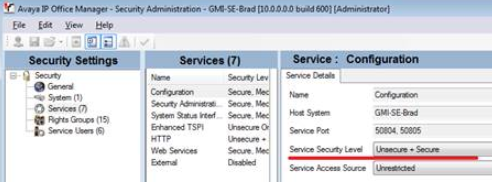
Select Services from here, and verify your Service Security Level is set to Unsecure + Secure.
-
Navigate back to the main Configuration page, and select Users > No User > Source Numbers.
-
Add TFTP_CONFIGURATION_READ to the Source Numbers for No User.
-
Save and merge changes.
IP Office 10.0 Config
- Verify each IP Office you're logging with has a CTI Pro Link license. Each IP Office needs a CTI Pro license to log via TCP-based DevLink3, as the monitor connection is no longer a reliable way for Chronicall to monitor UDP traffic in IPO v.10.
- If you're on Avaya IP Office 10.0 or newer, verify you're set up for DevLink3 access as shown here.
Shoretel Steps
TSAPI Connection
- Use the Shoretel Multi Line Browser software to see if Shoretel's own tool can see the lines loading on the local network. It will freeze up if it isn't working.
- This issue seems to lie between Windows and Shoretel servers, as their own tools can't see the TSAPI lines when down. We've seen Windows Server 2008 provide a more reliable connection when compared to Windows Server 2012 and 2016. With that said, Microsoft has ended support for Windows Server 2008 R2 editions, so please keep this in mind if you decide to roll back the server version.
Shoretel Event Logs
- Compare the Shoretel event logs at the directory listed below to verify listed events match the data stored in Cradle to Grave:
C:\Program Files (x86)\Xima Software\Chronicall\logsC:\Program Files\Chronicall\logs/var/lib/Xima Software/Chronicall/logs
- If the events match Cradle to Grave, escalate to Shoretel TAC, as Chronicall is logging the data Shoretel is sending over, and the adjustments need to be made on the Shoretel side.
Avaya CM Steps
CDR Not Logging or Data Is Missing/Inaccurate
- In the Call Detail View (for CDR data), we recommend trying to re-import GEDI exports. You can refer to Section 1.4 of the install guide here to review the export and import steps.
TSAPI Not Logging or Data Is Missing/Inaccurate
- For Avaya TSAPI data, review the setup in Section 1.5 of the install guide here.
Cisco Steps
Cisco Not Logging
- Refer to the Verify Connection Settings article to troubleshoot the configuration between Chronicall and the Cisco server.
- If the Tomcat logs in the Chronicall directory are showing "Connection Refused" errors, verify that the CTI Manager service is running in the Cisco CallManager Control Center per Cisco's article linked below.
Updated 3 months ago