
Chronicall Desktop Installation on Mac
-
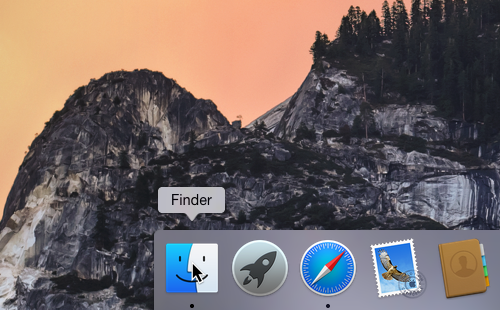
Open Finder
-
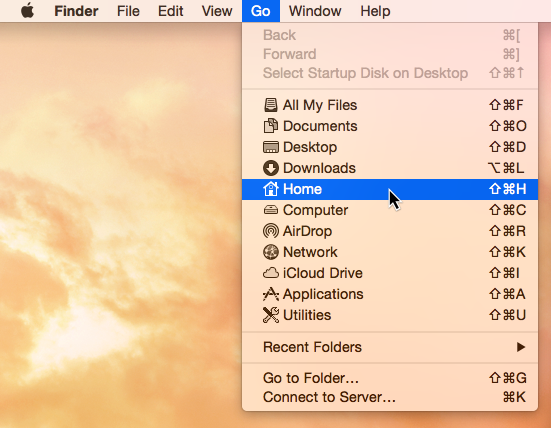
Within the Finder menu, select Go > Home to navigate to your Home folder
-
If you see a folder called Applications in your Home folder, skip to Step 6
-
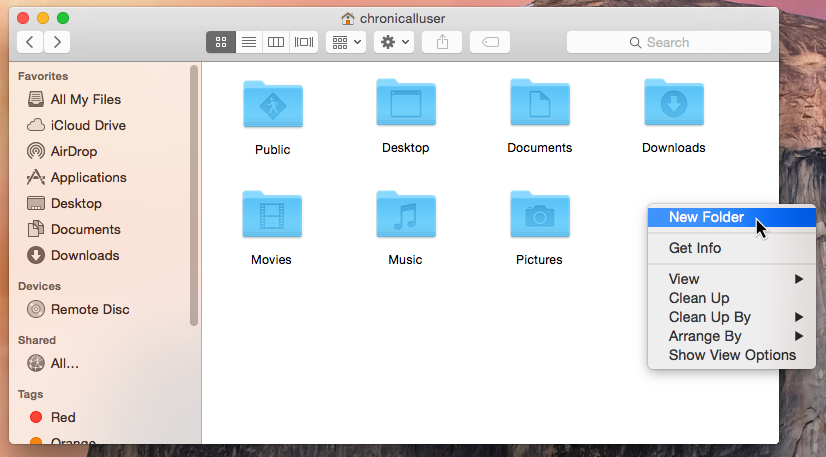
Create a new folder in your Home folder
-
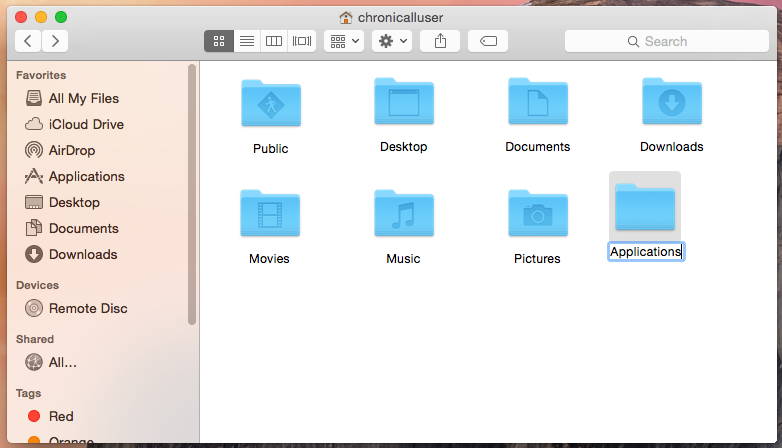
Give the folder the name Applications
-
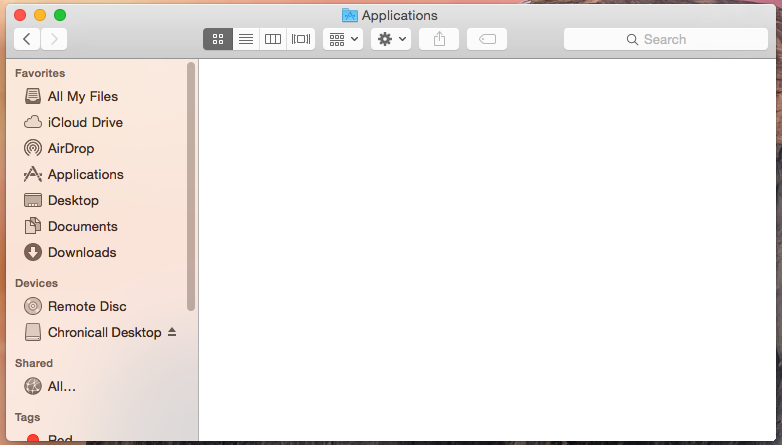
Open the Applications folder within your Home folder
-
Download and open the Chronicall Desktop file
- http://docs.ximasoftware.com.s3-website-us-west-1.amazonaws.com/mac/ChronicallDesktop.dmg
- NOTE: You will need to right-click this link and "Open link in new tab" to download properly if using Chrome or try pasting the link into an incognito window
- http://docs.ximasoftware.com.s3-website-us-west-1.amazonaws.com/mac/ChronicallDesktop.dmg
-
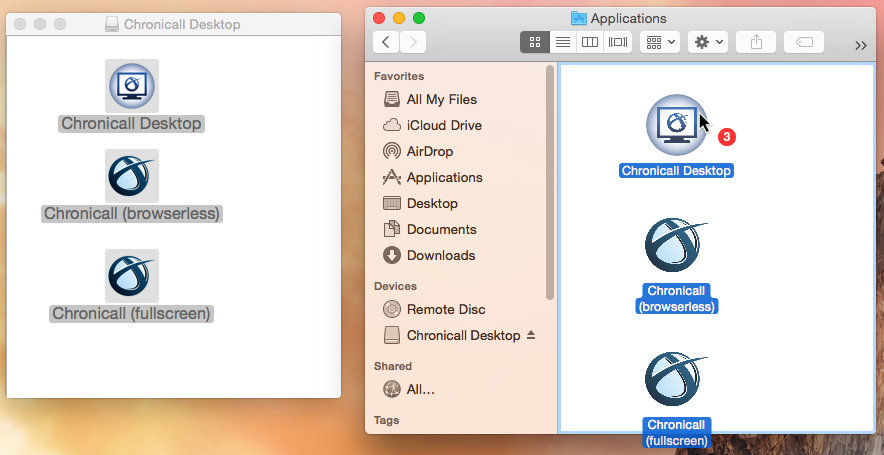
Drag the files from the Chronicall Desktop installation file into the Applications folder in your Home directory
-
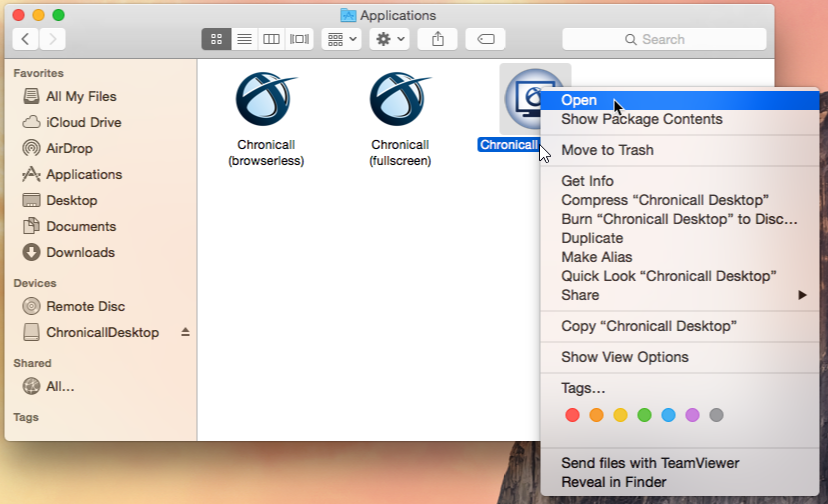
To launch Chronicall Desktop for the first time, ctrl-click on Chronicall Desktop and select Open
-
A popup will appear confirming that you want to open the application, click Open
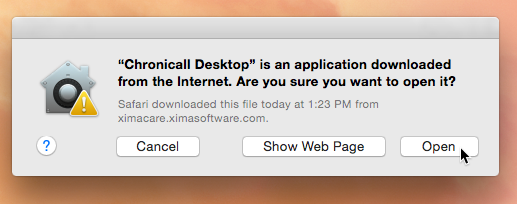
- NOTE: You may need to go into Security & Privacy settings to make an exception for the application. Otherwise, the system may prevent it from running properly.
Updated 3 months ago