
Unregistered Serial Key
Issue Description
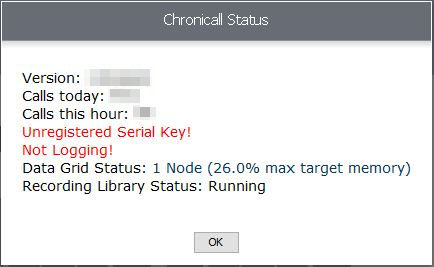
From within the Chronicall or Avaya Call Reporting status bell on the home screen, the following error message is displayed:
Unregistered Serial Key! Not Logging!
Cause
The Chronicall/ACR serial key is associated with the unique hardware profile of the server on which Chronicall/ACR is installed. This hardware profile is used to generate a Chronicall/ACR Info Hash. Whenever the known Info Hash for a particular serial key doesn't match the current hardware profile of the machine running Chronicall/ACR, the Chronicall/ACR status window will display an error and logging will stop.
NoteTo avoid this issue, unregister your serial key on the old server before moving Chronicall/ACR to new hardware, or before activating Windows on the Chronicall/ACR server, so it's free to register to the new hardware.
Resolution
Remove the Old Serial Key
If the old machine is still available, you can unregister the serial key, allowing the new hardware to be registered.
-
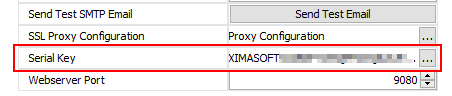
On the previous Chronicall/ACR server, navigate to Admin (System) > System Settings > Basic Settings > Serial Key.
-
Copy this serial key to your notepad so you can enter it on the new Chronicall/ACR installation.
-
-
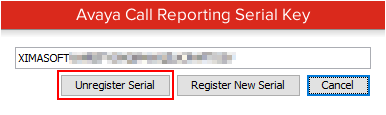
Select Unregister Serial.
-
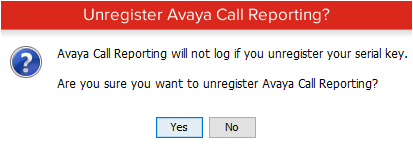
A prompt will ask you to verify that you want to unregister the serial key.
-
-
Click Yes to unregister the serial key.
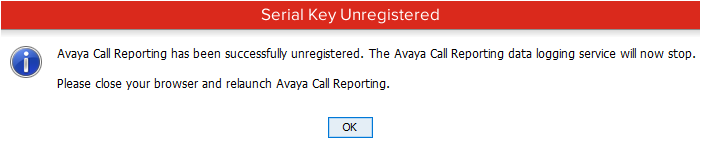
- You may receive a second prompt saying the serial key couldn't be unregistered but that it will be removed from the settings. You can disregard that for now.
-
You should now see that the serial key is no longer in the serial key box.
-
Click SAVE at the bottom of the System Settings page. This will take you back to the Chronicall main menu.
How to Register a New Serial Key
-
Navigate to Admin (System) > System Settings > Basic Settings > Serial Key.
-
Enter the new serial key.
-
Click Register.
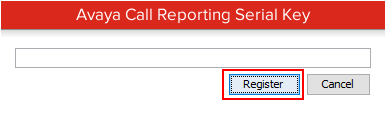
-
The serial key should register successfully.

-
You'll then see a screen telling you to relaunch your login.
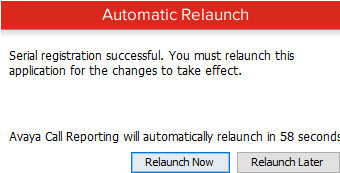
-
-
Click SAVE at the bottom of the System Settings page.
-
Relaunch Chronicall/ACR (exit and reopen).
-
You should now see that Chronicall/ACR is back up and logging again.
- If not, call Xima to reset your Info Hash on the back end.
Reset the Info Hash
If the old machine is no longer available, the Info Hash associated with the serial key will need to be reset by contacting the Xima Support Team. Have your serial key handy to expedite this process.
Updated 3 months ago