
Multimedia Web Chat Box Not Appearing
Overview
This article covers the steps to troubleshoot your web chat box for Multimedia if it isn't popping as it should.
Potential Causes
- The agent is not enabled for Web Chat.
- Web Chat setup not yet completed.
- Chat widget not in the web page's HTML.
Resolution
Follow the below steps to resolve your web chat issues with Chronicall Multimedia.
Verify Setup
Review our web chat setup guide. This will cover the basic setup for the web chat widget.
Copy HTML Code Snippet
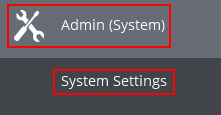
Log into Chronicall, and navigate to Admin (System) > System Settings.
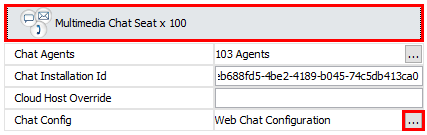
Select Multimedia Chat Seat > Web Chat Config > (...).
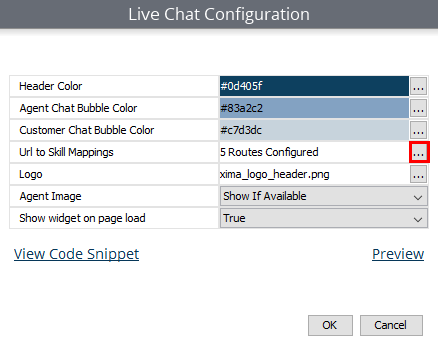
Select URL to Skill Mappings > (...).
Select View Code Snippet as shown below.
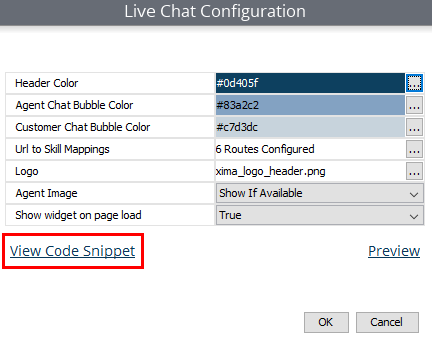
Copy the code snippet shown to the clipboard. Also, copy this snippet to a notepad, so you can refer to it later.
Insert HTML Code
Have your web administrator log into your website as an administrator to edit the HTML code and insert the widget.
Have your admin input the code copied earlier and save the changes.
If you are using Google Chrome, you can use the command Ctrl + Shift + I to inspect the HTML page.
Once successful, the top of the widget code should look like this on the inspect page (not all code is showing).
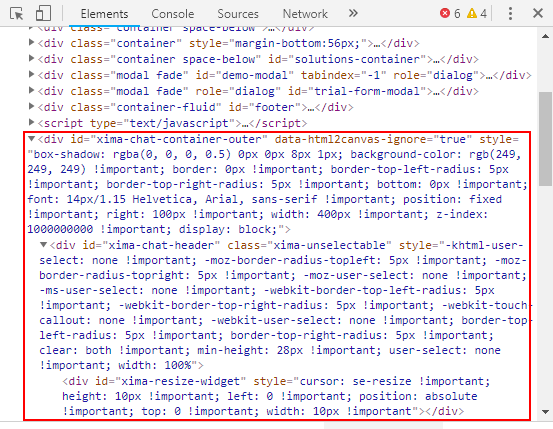
Test by refreshing the page, to see if the chat widget now pops on the applicable page the HTML code was inserted into.
Updated 3 months ago