
Log Aggregator Tool
Overview
Starting in version 3.10 of Chronicall, we introduced a new tool called the Log Aggregator. Using it will collect log files from Chronicall/ACR and upload them to the cloud. Xima Support can then download those logs for review. This tool was built to make collecting logs easier for both Support and our customers.
AlertThis is only to be done if requested by Xima Support — doing this without such a request will result in nothing being done, and the logs will be discarded automatically.
Making unauthorized changes to the Chronicall/ACR diagnostics page can negatively affect your software.
How to Upload
-
The Log Aggregator tool is accessible through the Chronicall Diagnostics webpage.
-
Please be sure to use Chrome, Firefox, or any other Chromium-based browser.
-
-
The Diagnostics page is usually accessed by going to the Chronicall IP address and port, followed by
/diag.- For example:
http://192.168.0.1:9080/diag - If you're on the Chronicall/ACR server itself, you can use
http://127.0.0.1:9080/diagorhttp://localhost:9080/diag - It can also be accessed via Chronicall/ACR's URL:
https://1example3.acr.ximasoftware.com/diag
- For example:
-
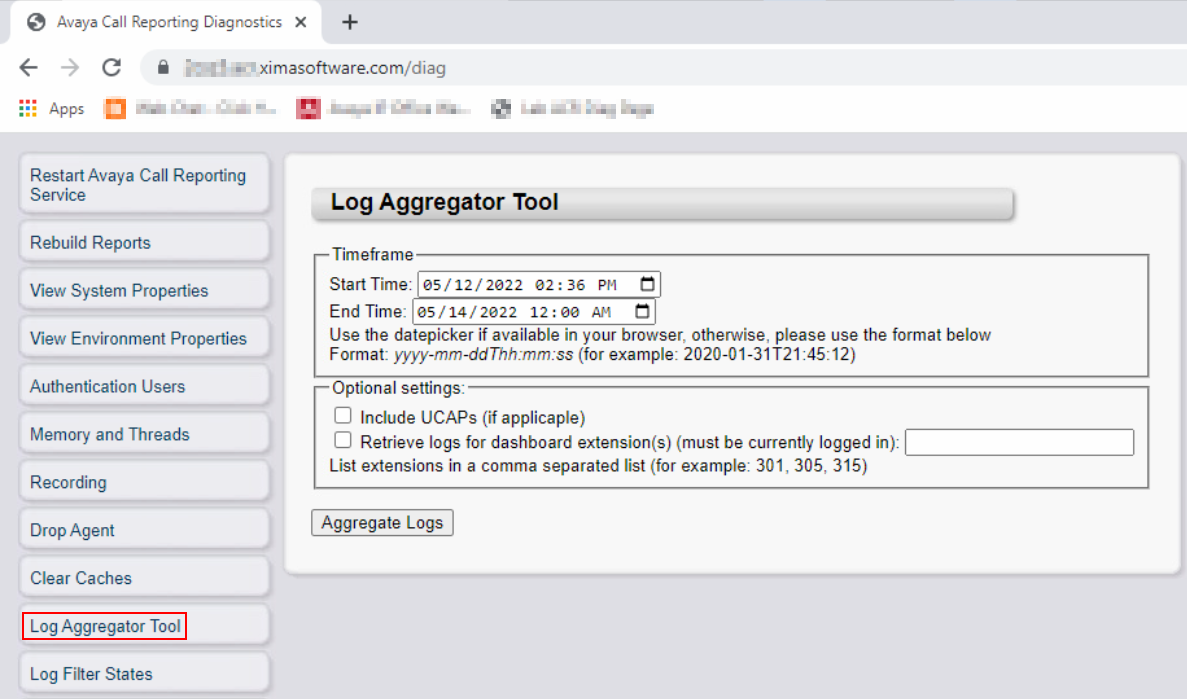
Click the Log Aggregator Tool option along the left-hand side.
-
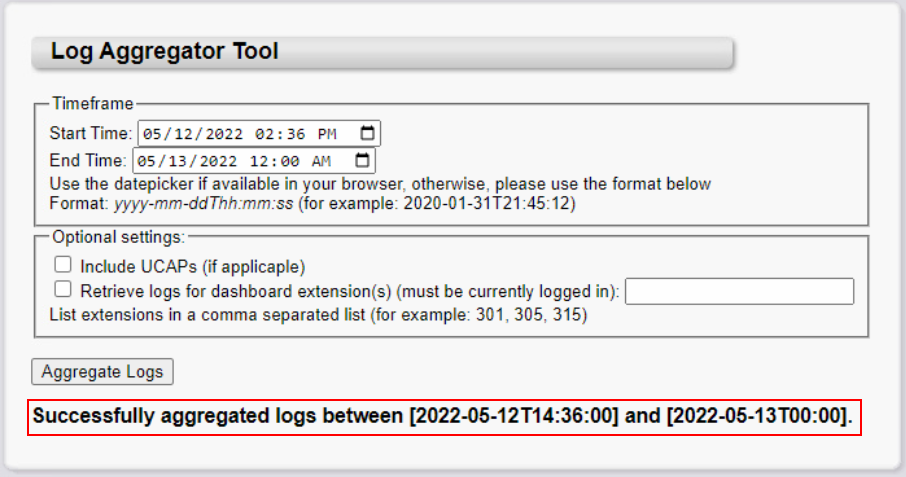
Select a Start Time and an End Time.
-
These are the boundaries for the logs you want included. Dates can be selected with a calendar by clicking the calendar icon on the right of the line.
-
Log files with names within the selected timeframe will be included — for example, a
server_date_start.logwhere the date is within the specified timeframe.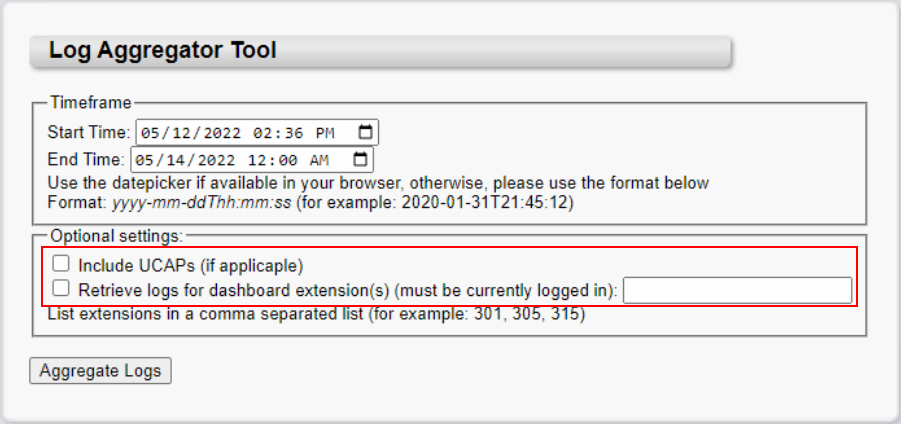
-
-
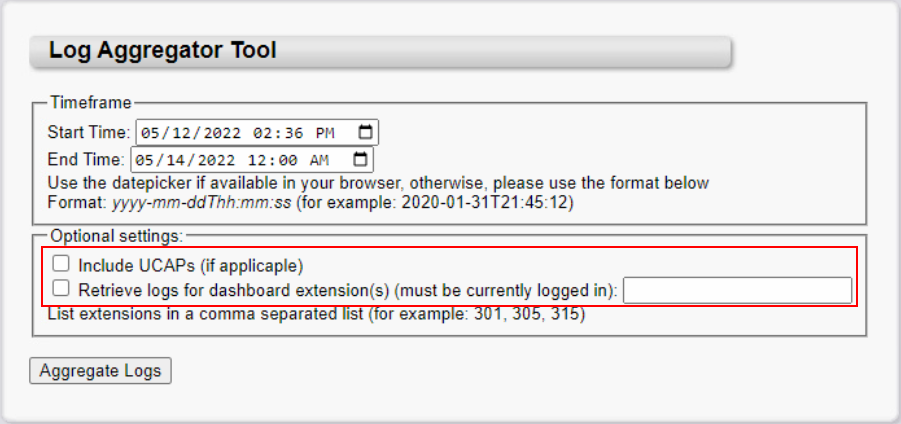
You can also select "Include UCAPs" if they were created, and you can include the logs for the Dashboard application as well.
-
Please only include these if requested by Xima Support to do so.
-
-
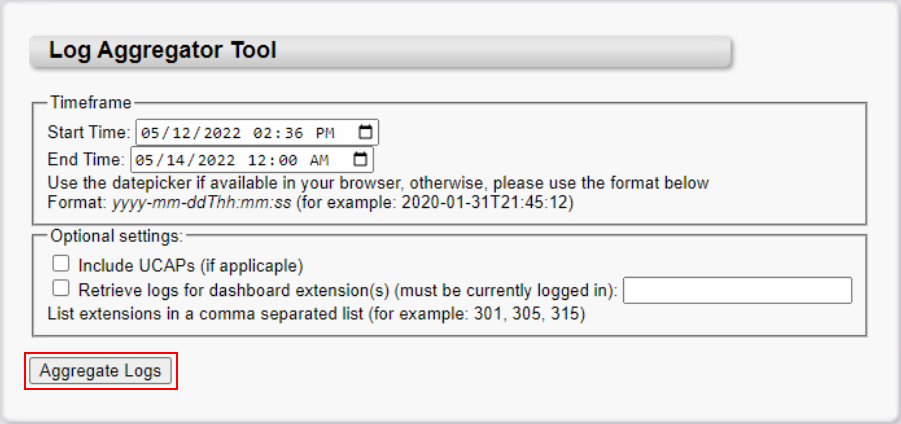
Click Aggregate Logs to start the process of collecting those log files and uploading them to the cloud.
-
Once the process completes, a message will display indicating success.
-
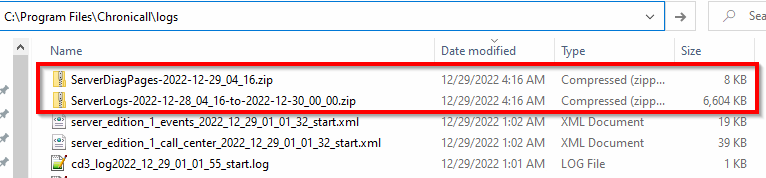
Once successful, a zipped folder will be left on the server, and a copy will be uploaded to the cloud.
-
Notify your Xima Support agent that the logs have been aggregated.
Collect Logs from the Servers
If you can't aggregate the logs to the cloud but still want to collect them from the individual server(s), you can retrieve the zip files from each server.
Chronicall Server
- Files will be located in the
/Chronicall/logsfolder.-
Verify that the required server and event logs are present in the .zip.
-
Recording Library Server
- Recording Library aggregated logs will be on the RL server. Filepath examples:
Chronicall\recording library\logsAvaya Call Reporting\recording library\logs
Multimedia Server
- Multimedia aggregated logs will be on the MM server. Filepath examples:
Chronicall\multimediaAvaya Call Reporting\multimedia
How to Retrieve from the Cloud
Once your logs have been aggregated, Xima Support will retrieve them from cloud storage on their end for review.
Updated 3 months ago