
Forced Login Fix - Realtime
Issue Description
This issue occurs when agents log out of their phone, but that change doesn't reflect correctly in Chronicall's Agent Timeline or on the Realtime Wallboard.
Resolution
Steps for Avaya IP Office
-
Log into IP Office Manager.
-
Select the User field, then select the agent having the issue.
-
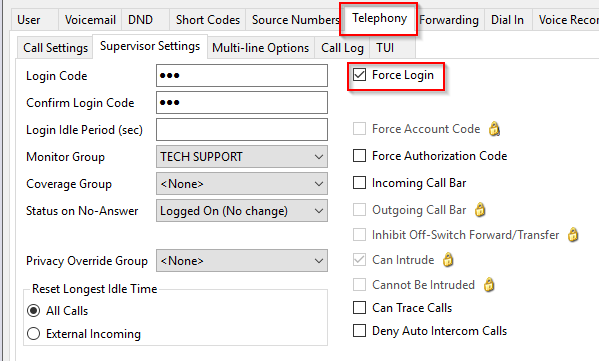
Select the Telephony tab for that user and check the box for Force Login.
-
If other agents are having the same issue, Ctrl-click each individual agent, go to the Telephony tab, and check the Force Login box.
-
Make sure you click the floppy disk icon in IP Office Manager to save the configuration. These changes will now be merged.
-
Have the agent log out of their phone and refresh the Agent Timeline or Realtime Wallboard in Chronicall — you should now see a logged out status.
Updated 3 months ago