
How to Display Unassociated/Pending Recordings
This article covers how to display unassociated recordings in Cradle to Grave, to help diagnose why recordings may be gray in this instance. Valid for Chronicall version 3.8 and above.
-
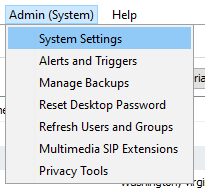
Verify your Recording Library is set to keep unassociated calls by logging into Chronicall and selecting Admin (System) > System Settings.
-
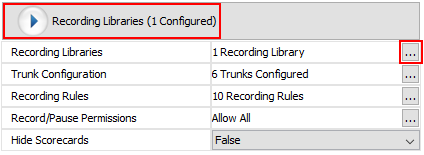
Select Recording Libraries, then the ellipses next to your Recording Libraries setting.
-
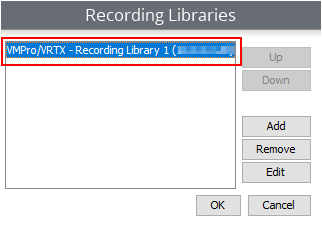
Double-click the related Recording Library setup.
-
If you have multiple options, make sure you check it for each Recording Library instance.
-
-
Verify that the Keep Unassociated setting is set to True. If it isn't, change it, then select OK > OK > Save to save the changes.

-
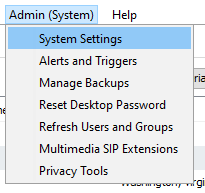
Next, select Admin (System) > System Settings again.
The way to find "Always Show Unassociated Recordings" and "Show Pending Recordings" is slightly different depending on what version of Chronicall/ACR you're on:
4.2.5 and above
-
Left-click Advanced Settings.
-
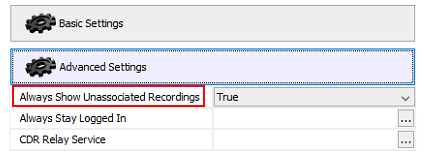
You should see the setting "Always Show Unassociated Recordings" — set it to True.
-
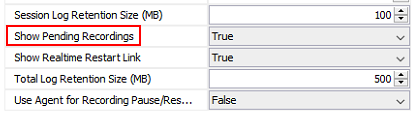
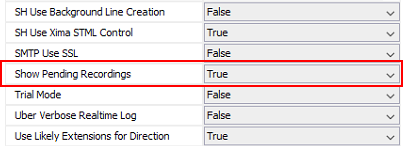
Scroll down to "Show Pending Recordings," set it to True.
-
Save the settings changes, then go into Cradle to Grave and refresh your screen.
4.2.4 and below
-
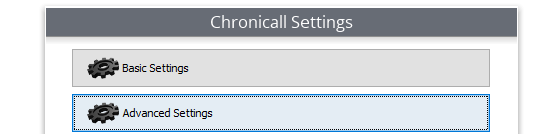
To get to the hidden settings, hold down the Shift key, then left-click Advanced Settings.
-
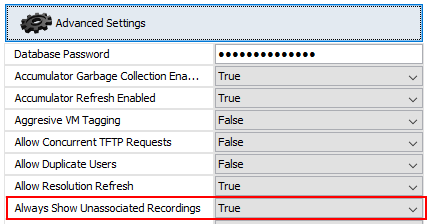
You should see the setting "Always Show Unassociated Recordings" — set it to True.
-
Scroll down to "Show Pending Recordings," set it to True.
-
Save the settings changes, then go into Cradle to Grave and refresh your screen.
-
-
Keep in mind, the default setting in Chronicall will wait 8 hours before putting the call in Cradle to Grave. It's recommended to make this change and let it run for 24 hours so you have a good data set to troubleshoot the following day.
- This is because Chronicall wants to avoid unassociated recordings, and will wait to try to find the best match. In this regard, it's helpful to refer to the previous day when troubleshooting unassociated recordings.
-
Chronicall associates recordings with calls via metadata it receives from the phone system. If there's a time difference of more than a few seconds between the Chronicall and PBX server, or the Chronicall and Recording Library server, it can cause the recordings to show on their own line in the database. This is the most common cause of unassociated recordings.
Updated 3 months ago