
Verifying Data Using Cradle to Grave
Overview
Chronicall has a unique advantage over other software by allowing users to verify report data against Cradle to Grave, the window to all your logged calls.
Whenever a customer asks one of our support agents if a report's numbers are correct, the first thing we do is pull up the report and run it, taking note of all its parameters. We can then create an identical filter in Cradle to Grave to make sure the query matches, and see exactly which calls are being counted in the report columns based on those parameters.
Standard reports are very solid and you can trust their results. Custom reports can be incorrectly configured, and require further digging to verify the parameters.
- One common misconception, for example: there can be some overlap between Answered and Abandoned Calls, or Missed and Abandoned Calls, and this is normal. You could, for example, have a call that is both Answered and Abandoned, or Missed but not Abandoned. See the linked article above for more details on this.
In summary, it's important to note in detail the parameters a report column is using, so you can rebuild the same query in Cradle to Grave.
Note Report Parameters
-
First, identify what report you want to capture data from. In this instance, we'll use the standard Group Summary report.
-
Right-click on the report in question and select Duplicate. This way, you're editing a copy of the report instead of the original.
-
Select the duplicated report from the list of reports.
-
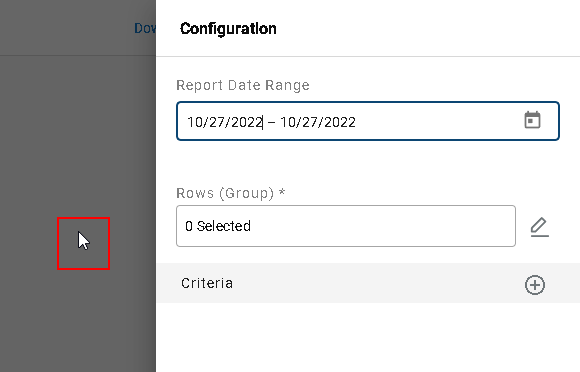
Click off to the left side of the Report Date Range to close that window.
-
Select Edit to review the report column parameters.
-
Let's say the user isn't sure the missed call count value is correct. To review this parameter, select the triple dot next to Answered Calls and select Edit.
-
Make note of the value summary below.
-
From the screen above, select Customizable to review the parameters in more depth, as shown below.
-
From the screenshot above, we can deduce that this filter is looking at the following parameters:
- Is Call Missed = True (we know this one based on the value's title — sometimes you have to look in C2G to find a matching value)
- Call Direction = Inbound
- Time of Day = 12:00:00 AM to 11:59:59 PM
- Include Accepted Callbacks = No
- Group = Customer Service
Replicate In Cradle To Grave
Now that we know what parameters are creating the Answered Calls value in the report column, we can replicate this exact query in Cradle to Grave for the same time range.
-
Navigate to My Reports in the HTML interface and select Cradle to Grave.
-
Select the same date range the report ran for.
-
Rebuild the same criteria that were in that value in the report, using the + sign.
-
Set the same criteria:
- Call Does Not Include Any Events = Queue Callback
- This looks different here but should display the same data.
- Call Direction = Inbound
- Is Call Missed = True
- Group = Customer Service
- Call Does Not Include Any Events = Queue Callback
-
Select Apply to run the Cradle to Grave query.
-
Cradle to Grave should now display all the same calls that showed up in that column on the report. You can click the > sign to expand each call for more details.
Live Example
Group Summary Report Example
- This Group Summary report was run in HTML in the demo instance for the following parameters:
- Date = 09/24/2022
- Group = Customer Service
- The parameters above on this report generate the following data.
- This report tells us that there were 17 Missed Calls by the Customer Service Group. Let's assume you want to do some digging into how we arrived at that number.
- To verify the data, we need to figure out what formulas are creating that criteria inside the report. From here, select Edit in the top right.
- From the edit screen, select the triple dots next to the value in question. In this case, we'll look at Missed Calls.
- Select Edit.
- This gives us two things to carry over to Cradle to Grave:
- The Missed Call description.
- The additional parameters this Missed Call Count criteria is using, by clicking Customizable.
- You can verify the call direction by clicking the pencil above. Once you do, you'll see they're using the call direction Inbound.
- So now we know we're looking for the following criteria in Cradle to Grave:
- Group = Customer Service
- Is Call Missed = True
- Call Direction = Inbound
- Call Does Not Include Event = Accepted Callback
Group Summary vs. Cradle to Grave
- In the example below, we've run the Cradle to Grave filter for the same time frame as the report (09/24/2022) to show all calls with the parameters below:
- Group = Customer Service
- Is Call Missed = True
- Call Direction = Inbound
- Call Does Not Include Any Event = Callback Accepted
- Now select Apply to view the missed calls matching the parameters above.
Updated 3 months ago