
How To Turn On "Always Stay Logged In" For Realtime Users ## Question
Question
I am having issues with my Realtime agents not getting accurate Realtime events or login/logouts even after checking my PBX configuration. How can I address this?
OR
I have agents that never log out of their phones at night so that they can have calls forwarded when they have after-hours important calls. How can I keep them logged in?
NoteRemote/VPN network conditions can make this more common. Realtime does its best, but issues like this can still come up.
Answer
You can turn on "Always Stay Logged In" within Chronicall/ACR in order to help. This will configure the software to always assume that the user/agent is logged into their phones, and can help with better Realtime logging.
Steps
-
Log in to Chronicall/ACR with admin privileges.
-
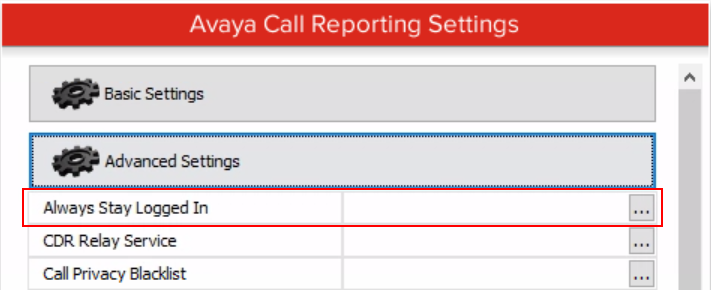
Navigate to Admin (System) > System Settings > Advanced Settings > Always Stay Logged In.
-
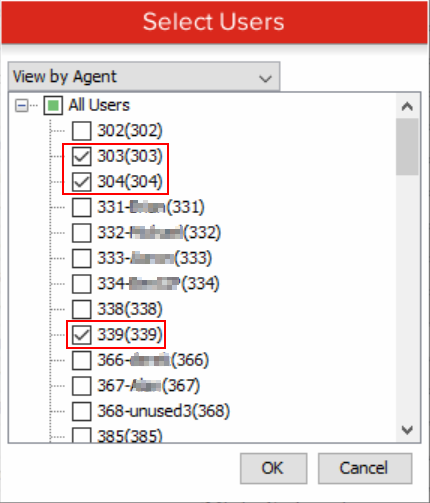
Click on the ellipsis to open the "Select Users" menu.
-
Select the agents that are showing incorrect Realtime events, or that you want always logged in.
-
Hit "OK" in the Select Users menu, then "Save" in System Settings.
-
Have the affected agents re-launch their Dashboards application or CCAgent.
- They may also have to re-login to their phones as well.
Updated 3 months ago