
Troubleshooting SSL/TLS (HTTPS) Connection
Issue Description
I've followed the setup article for the SSL/TLS connection but it still isn't working. What steps can I take to troubleshoot?
NoteIf SSL is Enabled, you need to use
HTTPS://ChronicallURL:9080/+ your Chronicall Document BaseID. Nginx requires that all connections (our own, or API) connect with that URL, not the IP address. If you're having issues accessing Chronicall, check whether SSL is enabled.
Steps
Verify the creation of nginx
- After configuring the SSL proxy and restarting services, wait approximately 5 minutes for the server to create an nginx task in Task Manager.
- You can also monitor the Chronicall/ACR folder for a new nginx folder to be created, which should contain an nginx.pid file once complete.
- The Chronicall folder is typically found at:
- Windows:
C:\Program Files (x86)\Xima Software\ChronicallorC:\Program Files\Chronicall - Linux:
/var/lib/Chronicall
- Windows:
- The Avaya Call Reporting folder is typically found at:
- Windows:
C:\Program Files\Avaya Call Reporting - Linux:
/var/lib/Avaya Call Reporting
- Windows:
- The Chronicall folder is typically found at:
- You can also monitor the Chronicall/ACR folder for a new nginx folder to be created, which should contain an nginx.pid file once complete.
- If those files are present, move on to the next step.
NoteIf the nginx folder is missing files, manually kill any nginx processes, rename the nginx folder to
nginx.old, and restart all services to recreate the nginx folder and process.
Check if nginx has bound to the correct ports
- Open a command line and use the following commands:
- Windows:
netstat -an | Find "80" netstat -an | Find "443" netstat -an | Find "9443" - Linux:
netstat -an | grep "80"
netstat -an | grep "443"
netstat -an | grep "9443"
- Windows:
- Verify that you see those ports as "Listening" — this usually looks like
0.0.0.0:80. - If you don't, there may be another webserver on the system bound to 80, 443, or 9443.
- Note: It's a hard requirement before using our proxy that there's no other webserver on the system bound to 80 or 443. That other webserver will need to be changed.
- Note: On version 4.4.0 and above, port 9443 has changed to port 8443.
Alternate method for checking bound ports (Windows only)
-
Open Windows PowerShell on the Chronicall server.
-
Copy and paste the following command into the PowerShell window:
Get-NetTCPConnection -State Listen | Select-Object LocalAddress,LocalPort,OwningProcess,@{label="Name";expression={(Get-Process -Id $_.OwningProcess).Name}}- This command displays all currently listening ports on the system, which lets you identify if any of the ports nginx is failing to bind to are currently being listened to by a different process.
-
Example: nginx logs were throwing the following error, indicating nginx couldn't bind to port 80:
2021/10/28 20:52:16 [emerg] 10148#2308: bind() to 0.0.0.0:80 failed (10013: An attempt was made to access a socket in a way forbidden by its access permissions) -
Running the PowerShell command above showed that port 80 was being listened to by a different process called 'System' under Process ID (PID) 4:
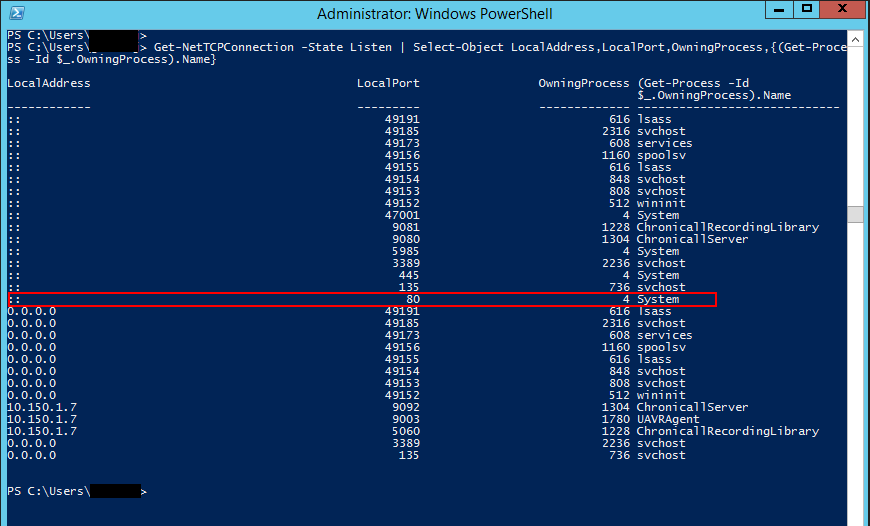
- Note: If a port that nginx requires is showing up in PowerShell as being used by a different, non-nginx process, it's the end user's responsibility to free up that port. Nginx requires the use of ports 80, 443, and 9443.
Verify the DNS record has propagated
-
Use a third-party website (dnschecker.org) to see if the DNS record has propagated worldwide.
-
Go to the website and input the DNS Record from Chronicall/ACR.
-
If the DNS record shows as propagated, check if the server also has that information by opening a command prompt on the server and running:
nslookup <InsertDNSrecordhere.ximasoftware.com>For example:
nslookup kjnbkjasdvjhv8938yfuhsvd.acr.ximasoftware.com -
If that command fails with a non-existent domain, you'll need to wait until the server pulls down the DNS information. This is governed by the network's own DNS propagation and can't be sped up.
Verify the ACR/Chronicall server can reach itself via its public IP address
If accessing ACR/Chronicall publicly, the ACR/Chronicall server must be able to establish a connection to itself over the ports above via its public IP address.
For HTTPS instances that stopped working
If your HTTPS connection was working and now isn't, this step can help get it back to a working state:
- Manually kill any nginx processes, rename the nginx folder to
nginx.old, and restart all services to recreate the nginx folder and process.
Updated 3 months ago