
Schedule a Month to Date Report
Many customers have requested a report to be scheduled for the entire current month up until the current date. While it's not immediately apparent, this is entirely possible for all reports.
Steps
-
Open up Chronicall/ACR and go to Reports > Run Report.
-
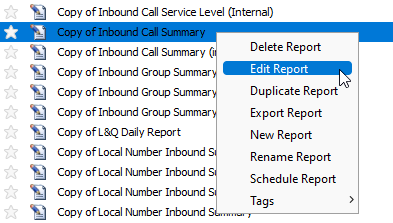
Select the report you'd like to schedule.
-
Right-click and select "Edit Report."
-
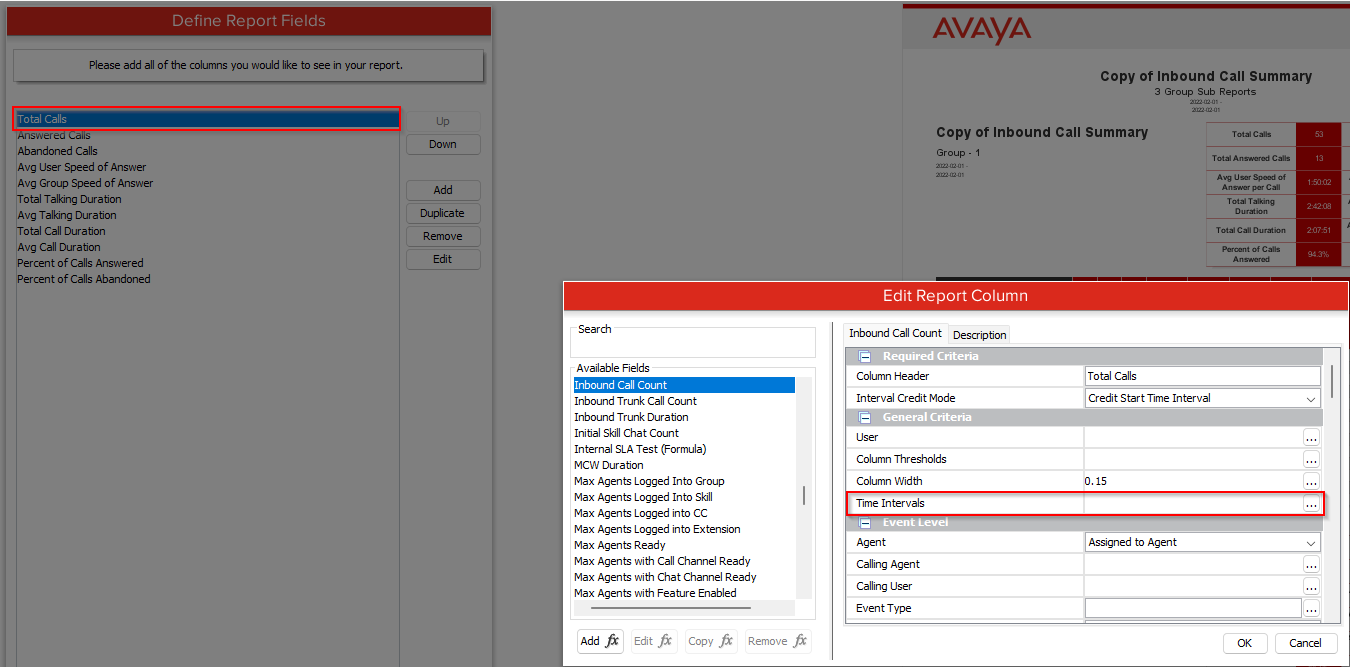
On the "Define Report Fields" page, select the top value, our first column (Total Calls in our case), and click Edit.
-
Under "General Criteria," you'll see a "Time Intervals" option — click the ellipses.
-
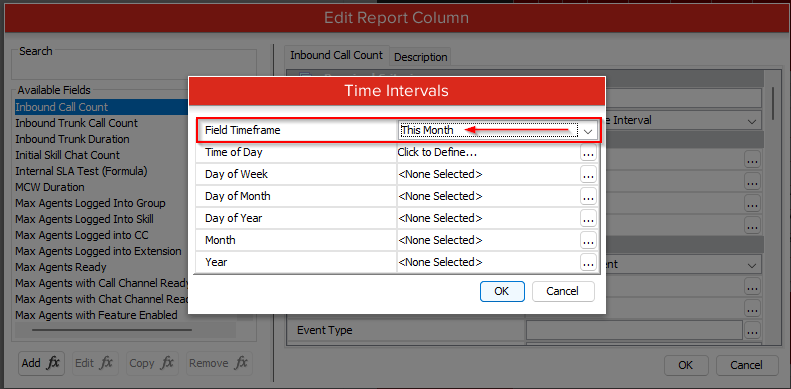
Set the "Field Timeframe" to "This Month."
-
Hit OK to save the change.
- You'll need to do this for each value (column) on the "Define Report Fields" page.
- In our example, we'd move on to "Answered Calls" and make the same change.
- Once all columns have been edited, save the report.
-
Next, we'll need to schedule this report.
-
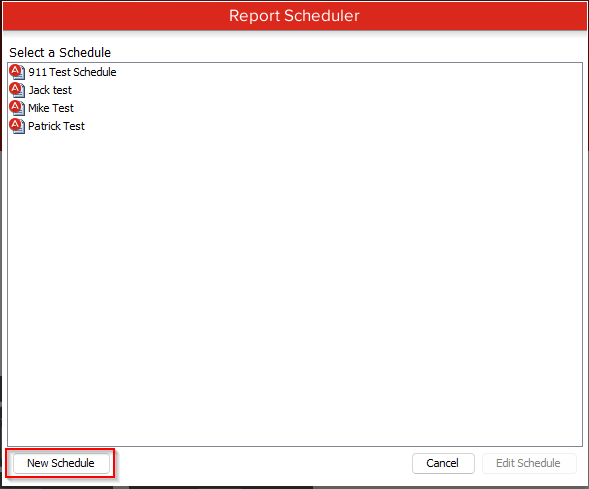
Open the report scheduler and select "New Schedule."
-
Find the report we just made and select it, then hit Next.
-
Fill out the required fields and hit next.
-
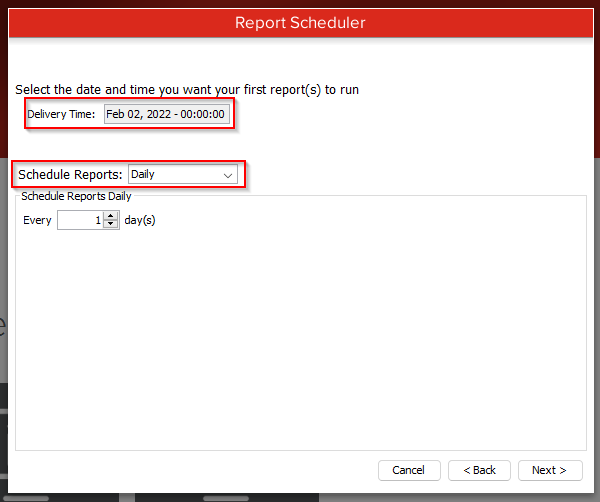
Set the delivery time for the first day you'll want to receive this report.
-
Set "Schedule Reports" to Daily.
-
Select Next >.
-
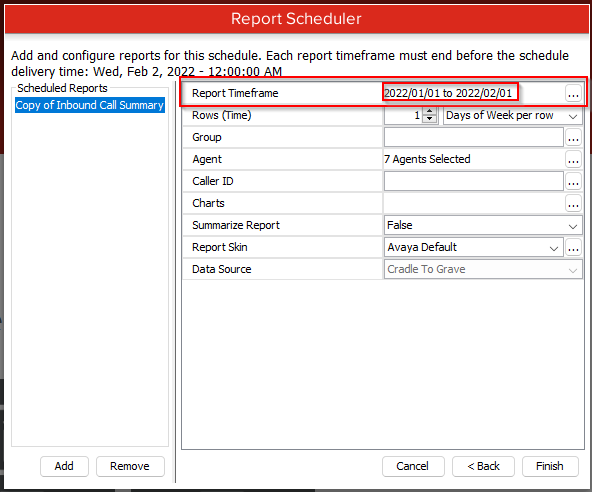
Set the "Report Timeframe" to the last 31 days, regardless of the current date.
-
Fill out the rest of the report criteria as needed.
-
Select Finish to finalize your report.
Updated 3 months ago