
Chronicall Fails to Launch, But the Chronicall Services Are Running on the Server
When attempting to access Chronicall via the Desktop Client, Browserless app, or Web Interface, the following error message is shown:
There was an error loading Chronicall Desktop
java.io.FileNotFoundException: http://localhost:9080/desktop
Cause
There are a few common causes of this issue.
NoteThis only applies to older versions. The tomcat-users file does not exist in 3.10, but there may still be an issue with the web.xml file.
- Chronicall server hard drive is full.
- A corrupt or missing
tomcat-users.xml, or a missingweb.xmlfile. - The custom Java paths have changed.
settings.xmlfile is corrupt.
Resolution
Check HDD Space
- Log into the Chronicall server.
- Ensure the hard disk drive Chronicall is installed on is not full.
- If you notice the hard disk is running out of storage, you can delete any old tomcat logs if they're taking up an excessive amount of room.
Tomcat-users.xml Corrupt (Does Not Exist in Chronicall 3.10 and Above)
-
Stop all Chronicall services.
-
If on Windows Server, look for any rogue Chronicall processes in Task Manager. If found, end the task.
-
Verify the Java path in the
chronicallwfolder. -
Locate
tomcat-users.xmlat the following file path:- Windows:
C:\Program Files (x86)\Xima Software\Chronicall\tomcat\conf\tomcat-users.xml - Linux:
/var/lib/Xima Software/Chronicall/tomcat/conf/tomcat-users.xml
- Windows:
-
Open the file and verify the text is in the same format as shown:
<?xml version='1.0' encoding='utf-8'?>
<tomcat-users>
</tomcat-users>- If not, reach out to Xima Support to receive a new tile.
-
Restart all Chronicall services.
Web.xml Corrupt
-
Stop all Chronicall/ACR services.
-
If on Windows Server, look for any rogue Chronicall/ACR processes in Task Manager. If found, end the task.
-
Verify the Java path in the
chronicallwfolder. You can refer to this article to verify the Java path is still valid. -
Locate
web.xmlat the following file path and open the file:- Windows:
C:\Program Files (x86)\Xima Software\Chronicall\tomcat\webapps\ROOT\WEB-INF - Linux:
/var/lib/Xima Software/Chronicall/tomcat/webapps/ROOT/WEB-INF
- Windows:
-
Open the file and verify the text is in the same format as shown:
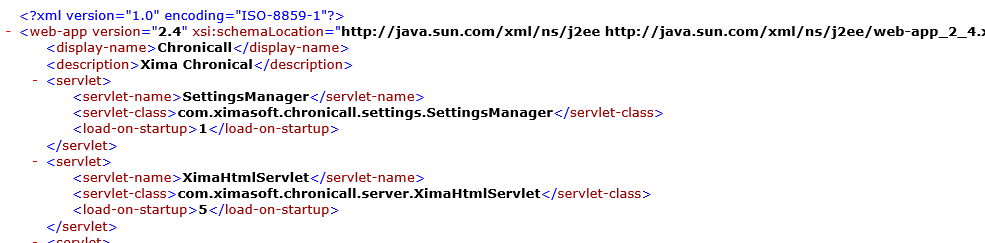
- If the folder is missing the
web.xmlfile, the file is blank, or it doesn't appear as above, reach out to Xima Support to receive a new file.
- If the folder is missing the
-
Restart all Chronicall services.
Settings.xml Corrupt
- Navigate to the Chronicall directory (path above) to locate the
settings.xmlfile. - Stop all Chronicall-related services (if you are not a Multimedia site) and move the
settings.xmlfile to the desktop, so you have a copy of it in case anything goes wrong. - Rename the
settings.bakfile tosettings.xml, after copyingsettings.bakto the desktop as well. - Start Chronicall services again and test Chronicall for functionality.
Settings.xml Missing or path.txt Incorrect (Linux)
- Navigate to the
/etc/chronicalldirectory in Linux. - You should see a
settings.xmlfile in that directory.-
If you don't, copy the settings file from the Chronicall/ACR directory and paste it here.

-
- Open the
path.txtfile and verify the path inside is the actual path to Chronicall/ACR.- If it's not, change it to the correct path, then save the file.
Updated 3 months ago