
Troubleshoot a Slow Chronicall Login
If Chronicall is taking a long time to log in / open on an offline server, there are a few things to adjust that might improve the login speed.
Remove Proxy Settings
-
Log in to Chronicall.
-
Navigate to System Settings > Basic Settings.
-
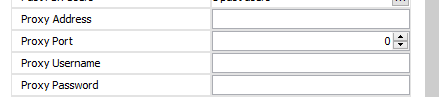
Take a screenshot or note any current proxy settings in case of rollback.
-
Remove any existing proxy settings.
-
Save changes.
Adjust the Hosts File
Windows
-
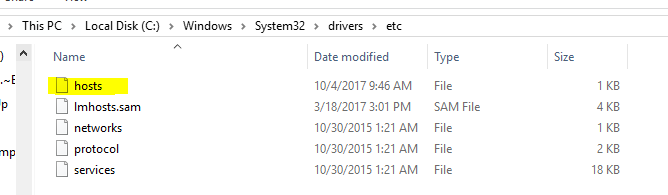
From the Chronicall server, navigate to the following location via Windows Explorer:
C:\Windows\System32\drivers\etc\ -
Edit the hosts file.
-
Add the following lines to the hosts file:
-
127.0.0.1 ads.chronicall.ximasoftware.com -
127.0.0.1 rest.ximasoftware.com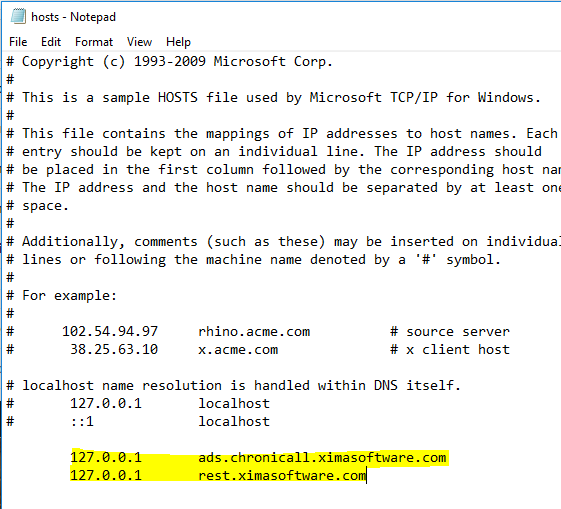
-
-
Save the changes you made.
-
Close Chronicall.
-
Reopen with the new settings applied.
Linux
-
Edit the hosts file with this command:
nano /etc/hosts -
Add the following lines to the hosts file:
127.0.0.1 ads.chronicall.ximasoftware.com 127.0.0.1 rest.ximasoftware.com -
Save the changes you made.
-
Close Chronicall.
-
Reopen with the new settings applied.
Updated 3 months ago