
Configure SFTP for VM Pro Recordings (Linux to Linux) ## Overview
Overview
With the release of IP Office 10.1, Samba sharing no longer works as a means to transfer .wav files to the Chronicall Recording Library.
Per Avaya, the correct way to get Voicemail Pro .wav files into Chronicall is by configuring the SFTP mechanism built into VM Pro to transfer the files over that connection.
Every major Linux distribution comes with OpenSSH by default, which provides the needed SFTP functionality. This article explains how to configure OpenSSH and Voicemail Pro so the Chronicall Recording Library can access and process the recording files.
Resolution
-
Change the Recording Library IP address to its actual address (not 127.0.0.1) if it isn't already.
-
Gain PuTTY (or equivalent) access to the Recording Library server as
root. -
Make a directory on the Recording Library server that outside sources can access.
-
For example, create the directory
/home/ximadmin/VmProVRLand share that folder using:chmod -R 777 <directoryname>
-
-
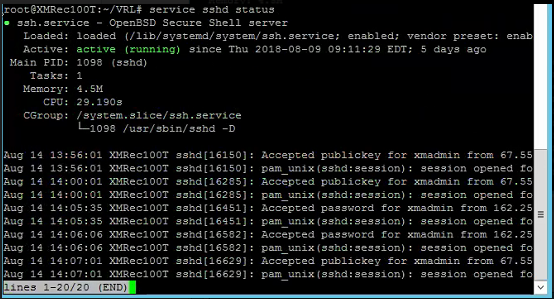
Next, ensure the server has OpenSSH running.
-
In the example below, the command used was
service sshd statusto check that it was running as intended. -
This service is commonly how PuTTY and other SSH/SFTP clients connect.
-
-
Gain PuTTY (or equivalent) access to the Voicemail Pro server.
-
To establish the connection, run the following command on the Voicemail Pro server:
sftp (target server user name)@(Recording Library ip address)-
The "target server user name" should be an Administrative account on the Recording Library server.
-
The password you input should be that Administrative account's password.
-
-
It will prompt you to accept a new RSA key the first time you perform this connection. Confirm it.
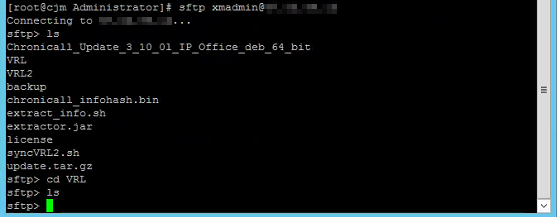
In the example above, we're connected to the Voicemail Pro server and connecting to the Recording Library server via SFTP.
-
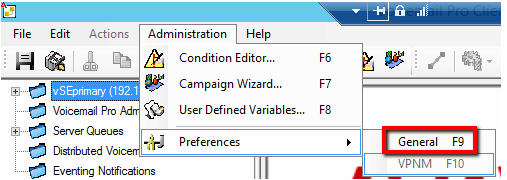
Finally, go to the Voicemail Pro application. Select Administration > Preferences > General.
-
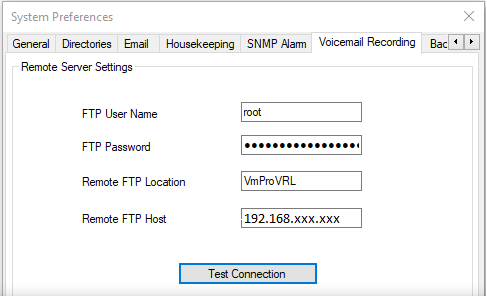
Configure the FTP settings to resemble the screenshot below. The FTP User Name, FTP Password, Remote FTP Location, and Remote FTP Host are all for the Recording Library server.
-
Depending on where you created the shared folder, you may need to input the full directory (like
/home/ximadmin/VmProVRL) instead of the example above.
-
-
Test your connection, and make sure to save your configuration.
-
After this is done, make sure your Monitored Recording Directory is pointing at the previously mentioned location on the Recording Library server.
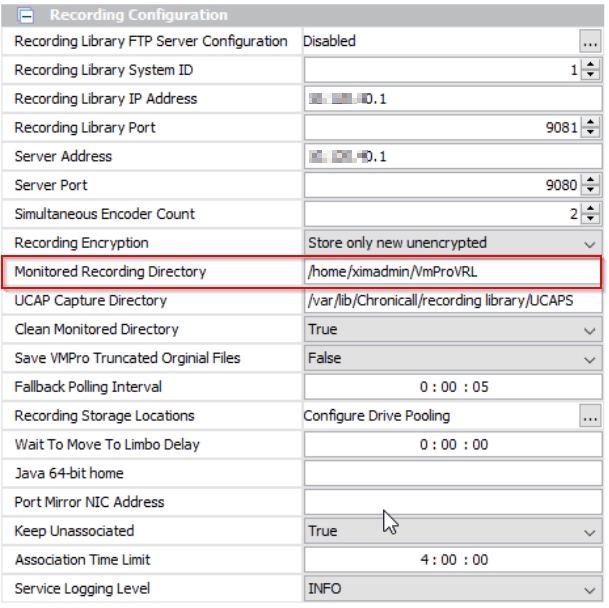
-
If recordings are not processing, restarting the Recording Library service should resolve it.
NoteIf you're still not able to connect via FTP from the Voicemail Pro system, but you are able to run the SFTP command from steps 5–7 after restarting the Voicemail Pro system, there may be a fault within that system's built-in SFTP. You'll need to reach out to partner support or Avaya Support for further assistance.
Updated 3 months ago