
Shoretel PRI Trunk Configuration
Shoretel has the ability to have multiple PRI trunks be in the same group, however, this causes issues with Chronicall being able to differentiate them for logging and recording purposes. This can also result in VRTX devices disappearing from your trunk configuration. How do I fix this?
Answer
We need to change the trunk name for each trunk so that Chronicall knows that we are dealing with two separate trunks within a group, and not as one single trunk. This change will need to be set up within the Shoretel Director first, then we'll adjust some settings within Chronicall to see that change.
Steps
Shoretel Director Steps
- In Director, the trunks have a name for each channel. They usually appear something like PRI(1), with the number in parentheses equaling each channel in the trunk.
- For example, in trunk group 4, you will have two lists of 23.
- These need to be renamed so that Chronicall can tell them apart.
- Change the current naming to be the trunk, with the channel in parentheses.
- Example:
- PRI#1(4-1), PRI#1(4-2), PRI#2(5-1), PRI#2(5-2)
- In this example, we renamed the PRIs so that the first 23 channels appear as trunk 4, and the second set of channels appear as trunk 5.
- This does not change anything with the PRIs, we are just renaming them.
- PRI#1(4-1), PRI#1(4-2), PRI#2(5-1), PRI#2(5-2)
- We need to take note of which VRTX is plugged into each trunk.
- Example:
Chronicall Steps
- First, remove the trunk config.
- Open Chronicall, and go to Admin (System) > System Settings > Recording Library > Trunk Configuration.
- Edit the Trunk Configuration and delete the trunks from there.
- If your version of Chronicall is older than 3.8.7, you will need to update to that point, at least.
- After the update, navigate to Admin (System) > System Settings.
-
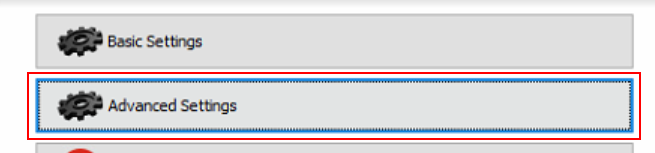
While holding down the Shift key on your keyboard, left-click on the Advanced Settings menu.
-
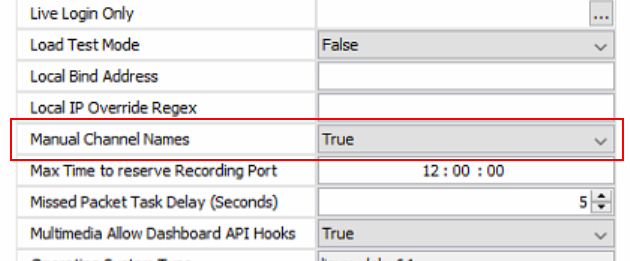
Navigate down to the "Manual Channel Names" setting and set it to True.
-
Restart Chronicall services so it can pull down the new lines.
-
- Re-open the Trunk Configuration back up (step 2) and you will now see two trunks, 4 and 5.
- Assign the VRTXs to their appropriate trunks and save your settings changes.
- This should resolve the issue with the VRTXs disappearing from the trunk config.
Updated 3 months ago