
How to Test Cisco CDR Connection
Issue Description
This test can be helpful if the Chronicall bell on the home screen is green and logging, but you're not getting any CDR call data in Call Detail View.
Cause
Something is blocking communication between the Chronicall server and the Cisco Publisher.
Resolution
Steps
-
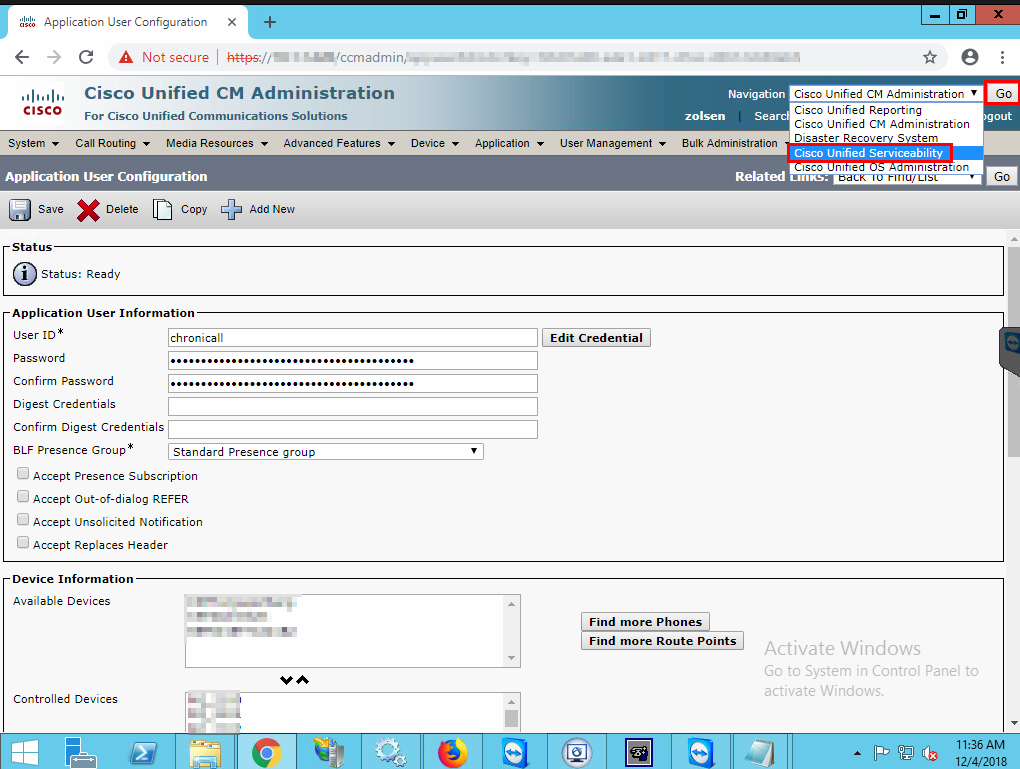
Log in to Cisco Unified CM Administration for the Publisher or Subscriber, based on which one is creating CDR data and user data, via a web browser.
-
Select the drop-down box in the top right of the admin tool.
-
Select Cisco Unified Serviceability > GO.
-
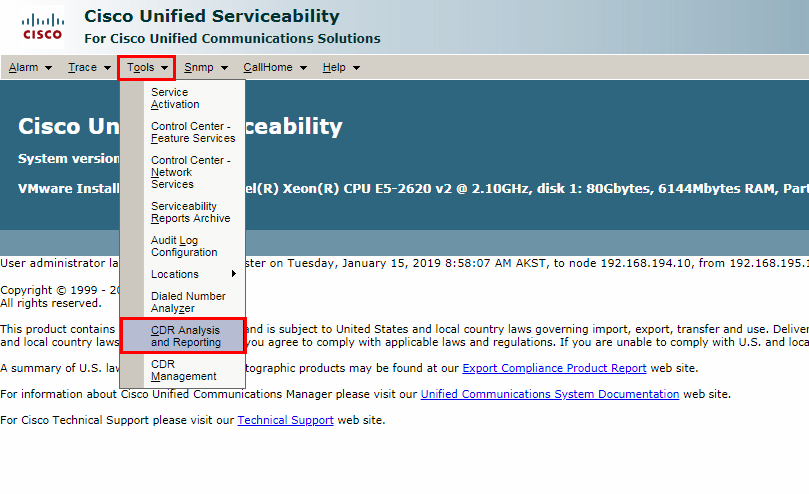
Select Tools > CDR Analysis and Reporting.
-
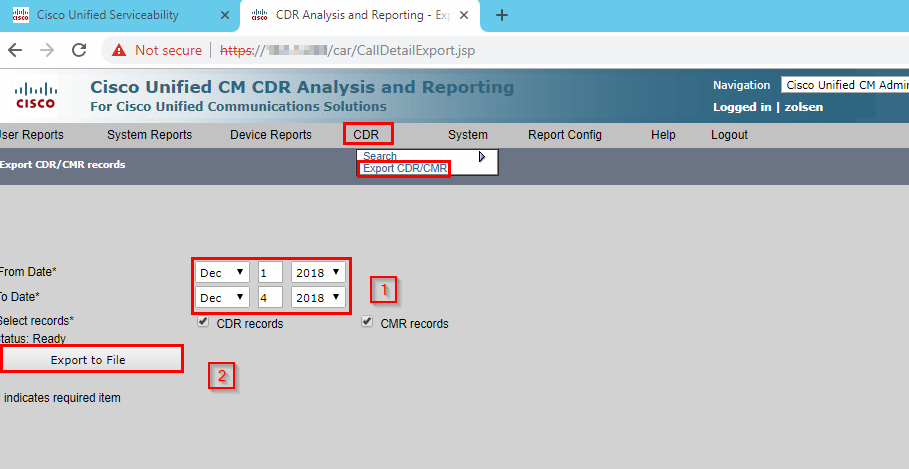
Select the CDR tab, then Export CDR/CMR.
-
Select today's date only to export the CDR data.
-
You should only export the data for the day that you're doing the troubleshooting, even if the issue has been occurring over several days.
-
-
Select "Export to File."
-
-
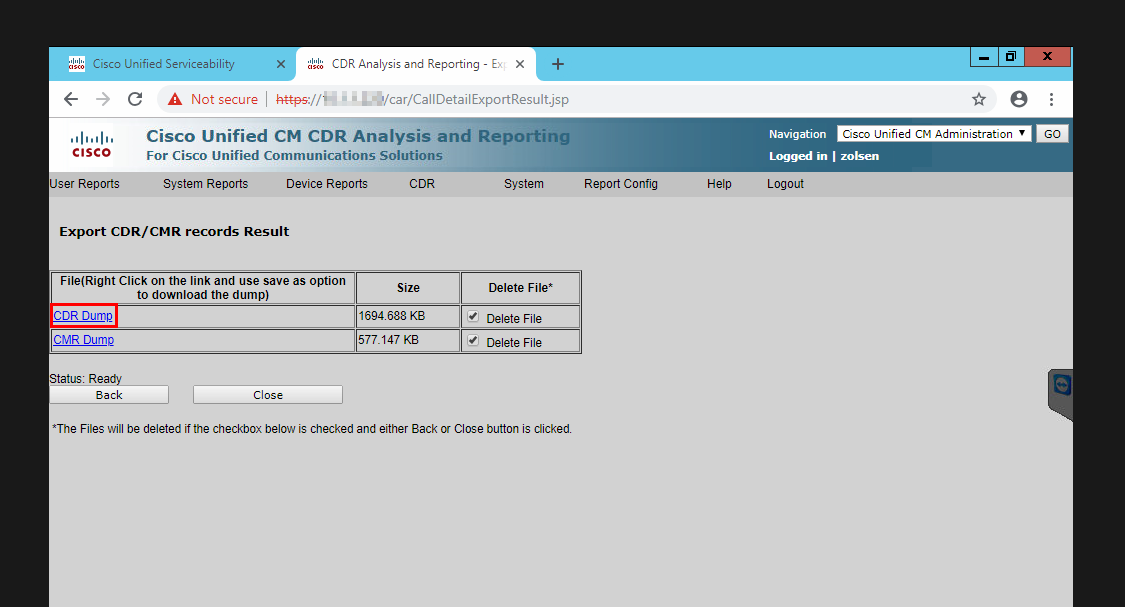
Right-click on the CDR Dump URL, and download it to the desktop.
-
You can usually tell if it's just the headers or a log of CDR data based on the size.
- The headers alone (no CDR data) will be around 3kb in size.
-
The screenshot below indicates the Publisher server is sending raw CDR data. You can review the log to verify.
-
If there's no CDR data, the headers alone appear like this:

-
-
Once you've verified the export, log into Chronicall.
-
Navigate to Admin (System) > Advanced Settings > Log Filters.
-
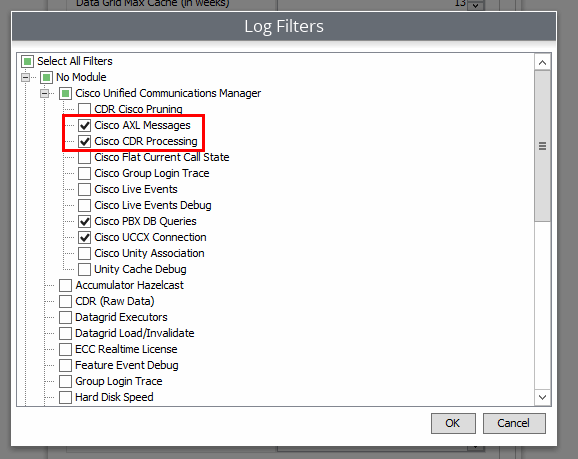
Enable the log filters shown below to get a better understanding of why CDR data is still failing.
-
Review the Tomcat logs to identify any relevant CDR errors.
Updated 3 months ago