
Troubleshooting Shoretel TSAPI Recording
Overview
This article covers troubleshooting Shoretel TSAPI audio recordings.
Cause
Potential causes could include:
- Recording rules configured inside Chronicall
- Two or more conflicting recording solutions
- Services not running
- Chronicall not logging
- Issues with the Shoretel Route Point, or the Route Point needs to be recreated
- Recording Library ran out of ports
Resolution
Verify Recording Icon
A solid playback icon

represents a recording that's successfully stored in the Chronicall database. If you have issues playing a solid icon, follow this troubleshooting flow to verify your services are running, and that you have a sound card on the computer you're playing the recording from. Once those steps are verified for a solid playback icon that still won't play, refer to our article Chronicall cannot find the recording.
If you see a gray

recording icon, continue following the steps below to narrow down the source of the issue.
Verify Chronicall Status
Verify the overall status of Chronicall and the Recording Library. On the Chronicall Home Screen, left-click the bell in the top right corner as shown below.

Select the previous business day for your date, and hit Execute. This will display all the calls in Chronicall's database for yesterday.
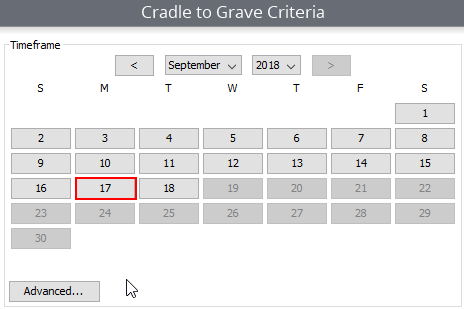

Cradle to Grave will show you if you're getting all recordings, some recordings, or no recordings. It will also show if you're getting all calls or missing some. If there were calls that weren't logged, it will affect recording association.
If you see a grayed-out recording icon, that means the call met a recording rule but didn't capture. In the screenshot below, you can see a call with a blue/white play icon that was captured. Below that is a gray icon, indicating the call met a recording rule but did not capture.

Chronicall Services
Ensure the main Chronicall service and the Recording Library service are running.
Recording Rules
Next, make sure your users are set up to be recorded via the internal recording rules for Shoretel TSAPI. Use this link to verify your current recording rules, or create a new recording rule for Shoretel TSAPI.
Unassociated Recordings
Log into Cradle to Grave again and pull up all calls for the previous business day. Make sure you're enabled to see unassociated recordings in Cradle to Grave and are searching for the previous day. It normally takes around 4 hours for unassociated recordings to show in Cradle to Grave per our default VRTX settings. Refer to that article to display unassociated recordings inside Cradle to Grave and verify you can see these after the 4-hour period.
Chronicall and the Recording Library are two separate processes. Chronicall logs the call data, while the Recording Library pulls the completed recording from Shoretel. Once Shoretel finishes recording a call, it uses the recording's metadata to associate it with a call record in the database. If it can't find a call to associate with, and Keep Unassociated is set to True within the Recording Configuration, the recording will be listed separately as a "Call Recorded." You'll usually see the recording listed right above or below the call with the grayed-out play icon.
Shoretel TSAPI Route Point
Refer to our Shoretel Setup Guide to verify your route point is set up correctly, so Chronicall can pull those recordings once completed. If you recently migrated to a new Chronicall server, the route point needs to be updated to point to the new server. If the route point seems to be having issues, you can also try recreating it using the linked guide.
Out Of Ports
Make sure there's no Out Of Ports folder on the Recording Library server, at the file paths below. If there is an Out Of Ports folder here, the issue is that you're running out of recording ports. You'll want to upgrade your license to accommodate the increased number of calls meeting a recording rule. The number of your recording ports corresponds to how many recordings can be stored at any one time — if you have 8 recording ports and 10 active calls that meet a recording rule, the last 2 will not show in Cradle to Grave.
C:\Program Files (x86)\Xima Software\Chronicall\recording libraryC:\Program Files\Chronicall\recording library/var/lib/Xima Software/Chronicall/recording library
Multiple Phone Lines
Are there multiple trunks (phone lines) being captured? If so, it's helpful to determine if a specific trunk is having issues. You can right-click on the column title bar in Cradle to Grave and select Trunk from the drop-down box. Then drag the Recording column next to the Trunk column to diagnose which trunks may be having an issue.
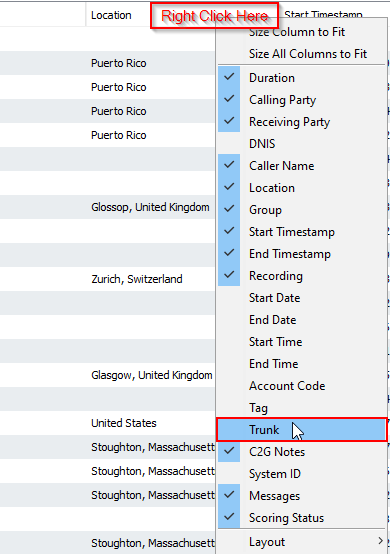
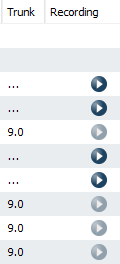
As shown below, once Trunks is displayed in Cradle to Grave next to the Recording column, you can see that the calls on Trunk 9 are having issues. This helps narrow down the source of the issue.
Updated 3 months ago