
Configure Cisco Unified Application User
An Application User must be created and configured inside of the Cisco Unified CM Administration tool to allow Chronicall to connect to the system. Chronicall also requires user access to the administrative XML (AXL) API to query for users, groups, voicemail information, call park timeouts, and to automatically configure devices to be monitored (if requested within Chronicall).
To create an application user:
-
Sign in with administrator rights to Cisco Unified CM Administration.
-
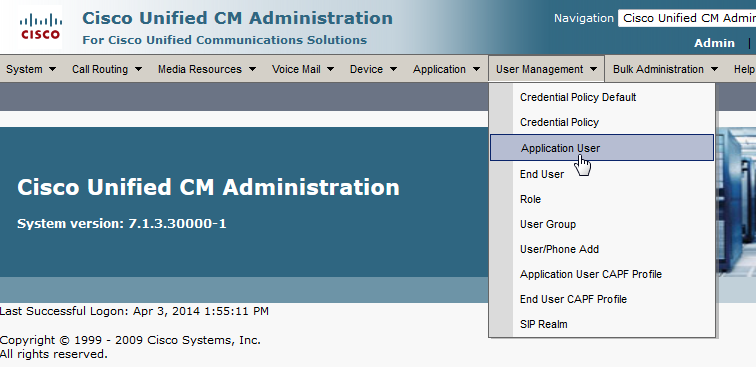
Select User Management > Application User.
-
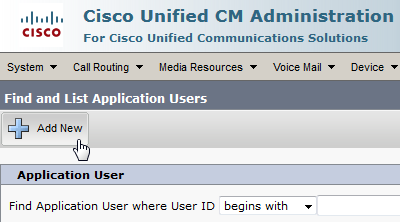
Select Add New.
-
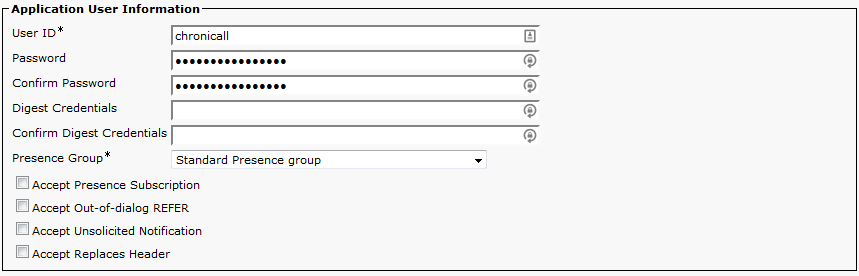
Enter a User ID and Password for Chronicall to use in the Application User Information section.
-
In the Permissions Information section, click the Add to User Group button.
-
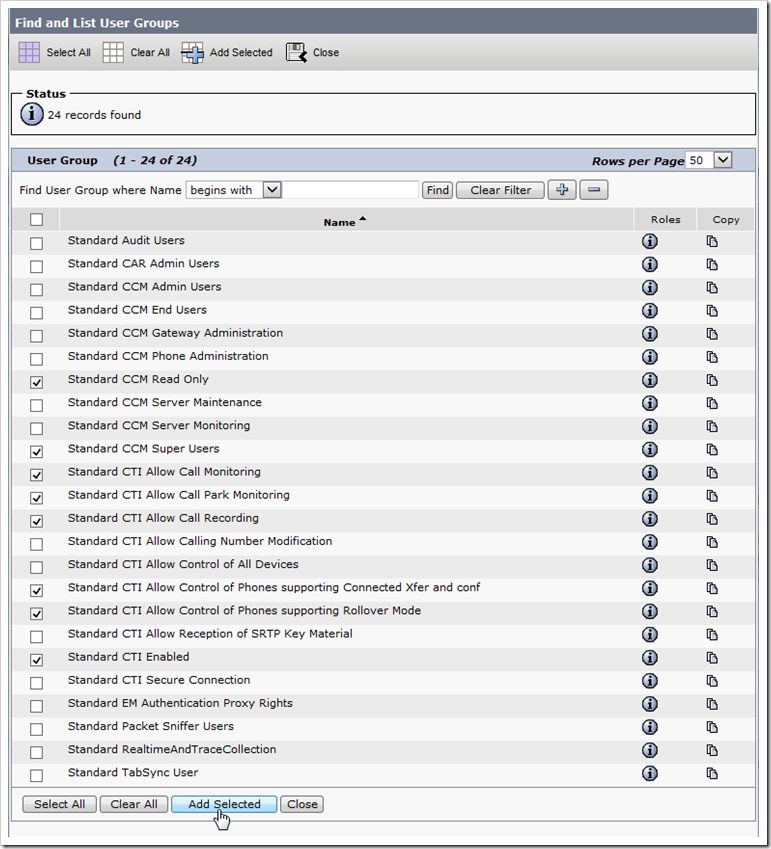
Then click Find and select the following groups:
- Standard CCM Read Only
- Standard CCM Super Users
- Standard CTI Allow Call Monitoring
- Standard CTI Allow Call Park Monitoring
- Standard CTI Allow Call Recording
- Standard CTI Allow Control of Phones supporting Connected Xfer and conf
- Standard CTU Allow Control of Phones supporting Rollover Mode
- Standard CTI Enabled
-
Click the Add Selected button.
-
Click "Save."
-
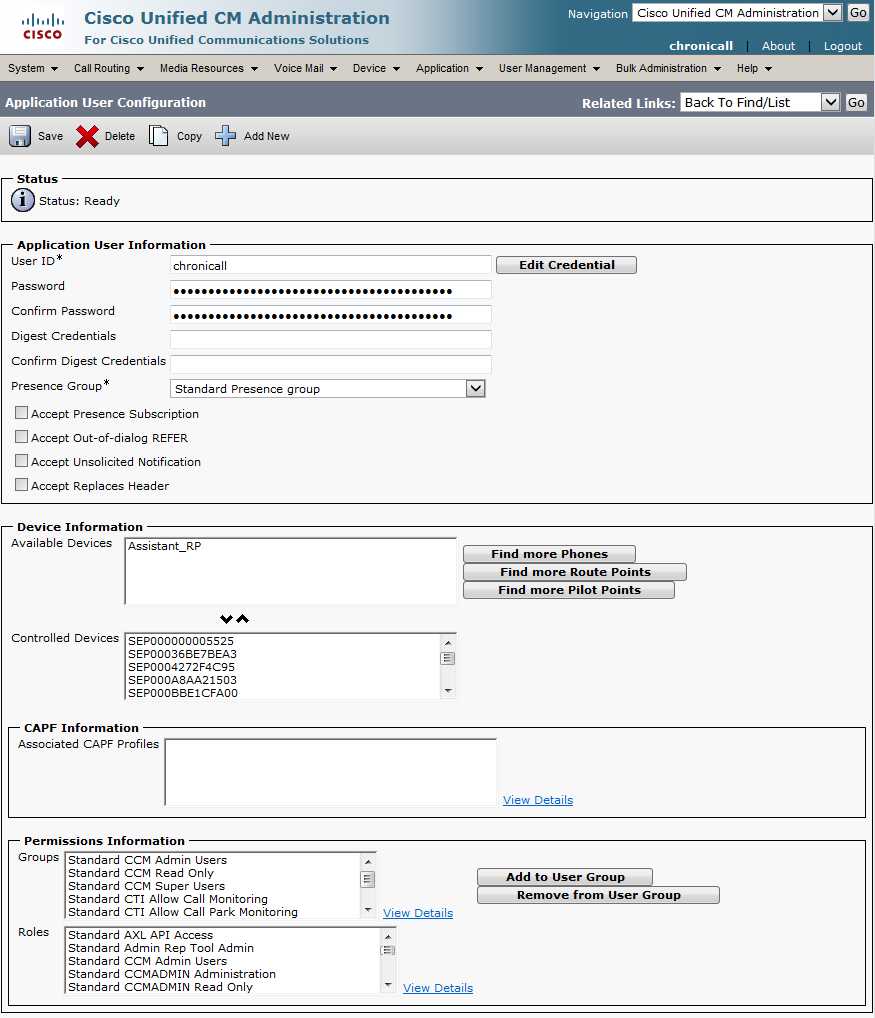
The user should now look like the image below.
-
Please ensure you move all available devices to Controlled Devices. If they are not under Controlled Devices, they will not appear in Chronicall.
 Note
NoteAll devices must be added to the Chronicall user, since this ensures that the logging is accurate and the recordings associate to the correct device. Within Chronicall you can leave users unlicensed so their details don't show in reports, but the Chronicall user needs to be able to pull data from all device types.
-
Updated 3 months ago